

Help CenterGetting started
Offers
What it's about
With offers you send your lead a link to an offer in the WhatsApp chat. They see the title, the line items and the total price and accept it with their name and a checkbox, or they decline. You see in the chat whether they opened, accepted or declined it. Every offer is made from a template you create once.
Where to find it
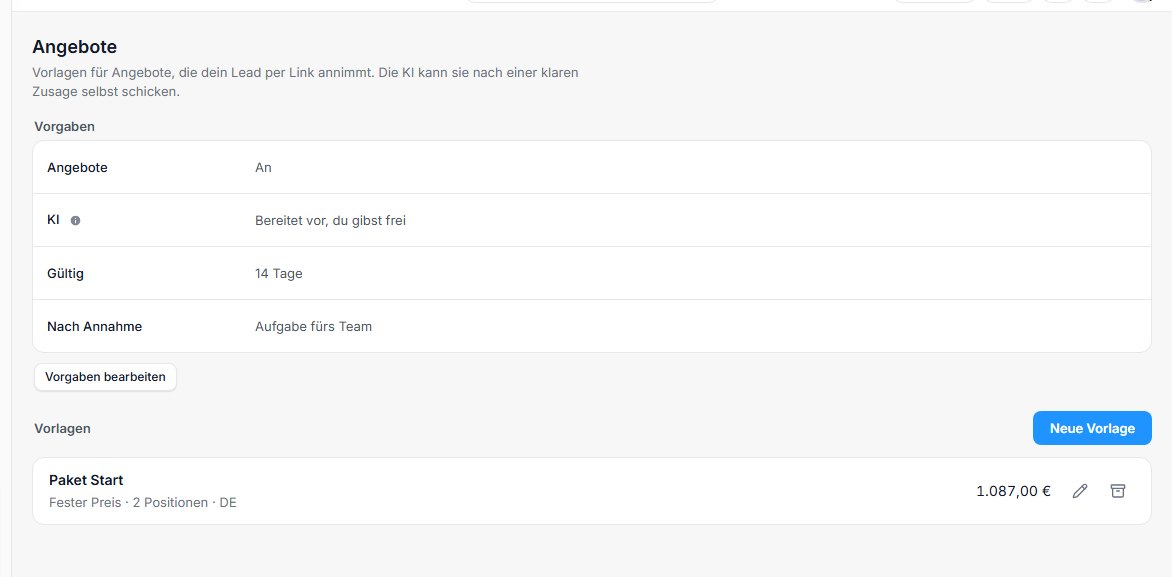
On the left click “Settings”, then under “Pipeline” click “Offers”. Your defaults and templates are there. You send an offer in the chat with the “Offer” button next to the message box. If deposits are set up too, both sit behind one “…” button (More actions), so the message box stays wide.
How it works
Create a template
- Click “New template”.
- Give it a name, for example “Starter package”. Only you and the AI see the name.
- Enter the offer title and the line items: description, quantity and unit price. Nuntera calculates the total.
- Optionally add terms, for example “Payable within 14 days of acceptance”.
- On the right you see right away how your lead will see the offer. Click “Save template”.
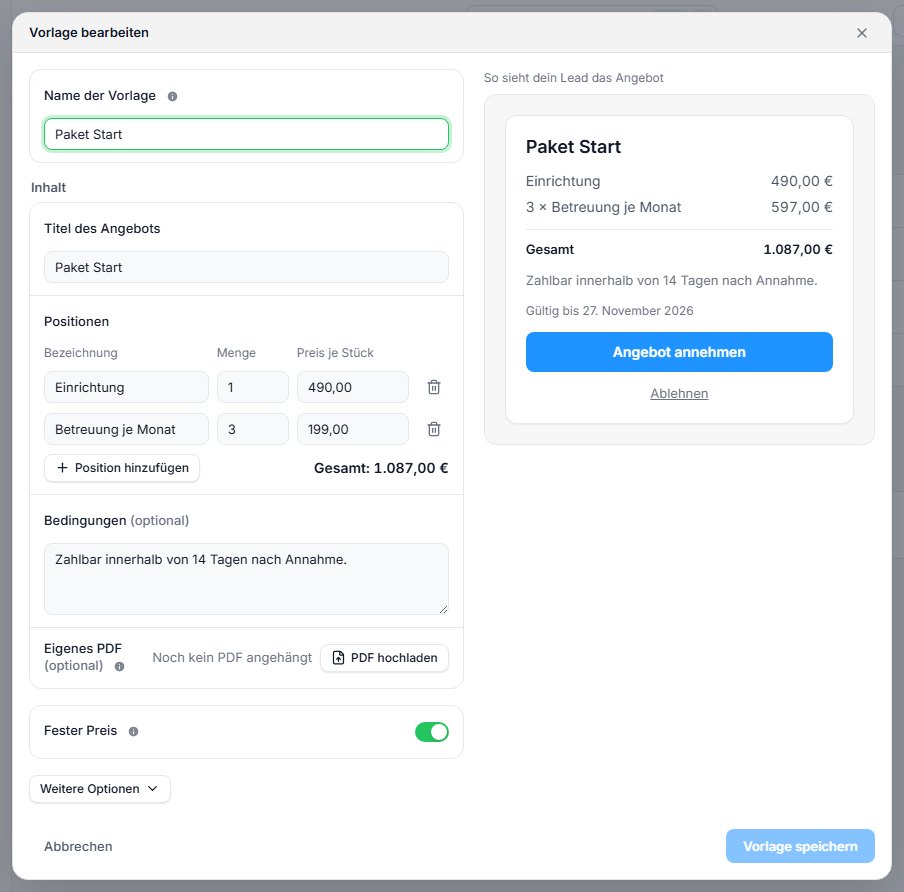
Under “More options” you choose the language of the page for the lead (German or English) and the currency.
Appearance
The “Appearance” section shows how your lead sees the offer page: your logo (or the first letter in your color), your name and the button color. With “Edit appearance” you change logo, name and color. This works without Stripe too, and the same settings apply to your payment page later. The preview in the template editor shows your appearance as well.
Attach your own PDF
If your offer is already finished, for example in Word or Canva, attach it to a template as a PDF.
- Open a saved template.
- Next to “Own PDF”, tap “Upload PDF” and choose the file.
- Nuntera checks it right away. If everything is fine, it says “PDF attached”.
Your lead then sees the “View PDF” link in the offer. PDFs up to 10 MB without scripts or embedded files are allowed. If Nuntera rejects the file, export it again as a plain PDF, for example via “Print to PDF”. “Replace” uploads a new version, the bin removes the PDF. Offers already sent keep their PDF.
Set the defaults
Click “Edit defaults”. There you switch offers on and choose what the AI may do:
- Never sends offers: only your team sends offers.
- Prepares, you approve (recommended): when the lead says yes, the AI creates the offer as a draft. You approve it in the chat with one click.
- Sends after a clear yes: the AI sends the offer itself as soon as the lead clearly says yes.
You also set how long an offer is valid and whether a task for your team is created after an acceptance.
Send an offer in the chat
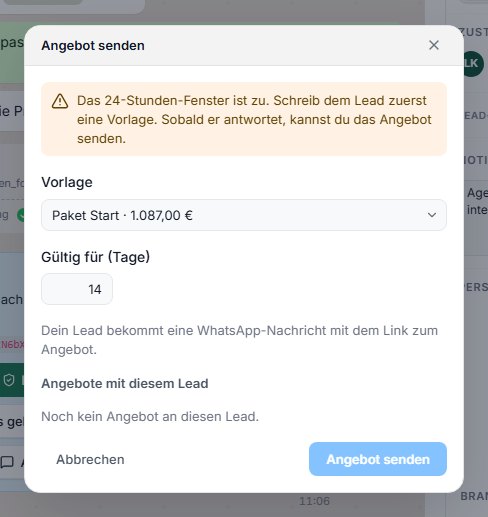
In the lead's chat click “Offer” (or “…” and then “Offer”), choose the template and click “Send offer”. Your lead gets a WhatsApp message with the link. Below you see all offers to this lead. A draft from the AI goes out with “Approve and send”, and you withdraw an open offer with “Withdraw”.
What the AI does
The AI never sends a made-up price. It always uses one of your templates and only sends fixed-price templates itself. It only acts after a clear yes from the lead. On a question, a “maybe” or “next week” it sends no offer. While an offer to the lead is open, it does not send a second one.
Good to know
- Accepting takes the full name and a tick next to your consent text. Name, time, IP address, device and checksums of the offer and of the consent text are stored. You see this in the chat under “Proof”.
- After accepting, the proof is also available as a PDF. If the 24 hour window is open, your lead gets the link to it in the confirmation in the chat.
- An expired or withdrawn offer no longer shows the lead any content, only a short sentence.
- Offers only go out while the WhatsApp 24-hour window is open and the lead has not opted out.
- Owners and admins change defaults and templates. If you archive a template, offers already sent stay valid.
- Whether an offer is binding like this depends on your business. If in doubt, ask your legal advisor.
- If a yellow notice “not enabled yet” is shown at the top, you can already create templates; sending works as soon as offers are enabled for your workspace.
Frequently asked questions
Can the lead still change the offer?
No. They see exactly the version you sent. For something else you send a new offer.
What happens if the lead declines?
You see it in the chat, and the offer then shows “Declined”.
Does the lead see that the AI sent the offer?
No. For them the message arrives like any other from your chat.