

Help CenterGetting started
Discover integrations
What it's about
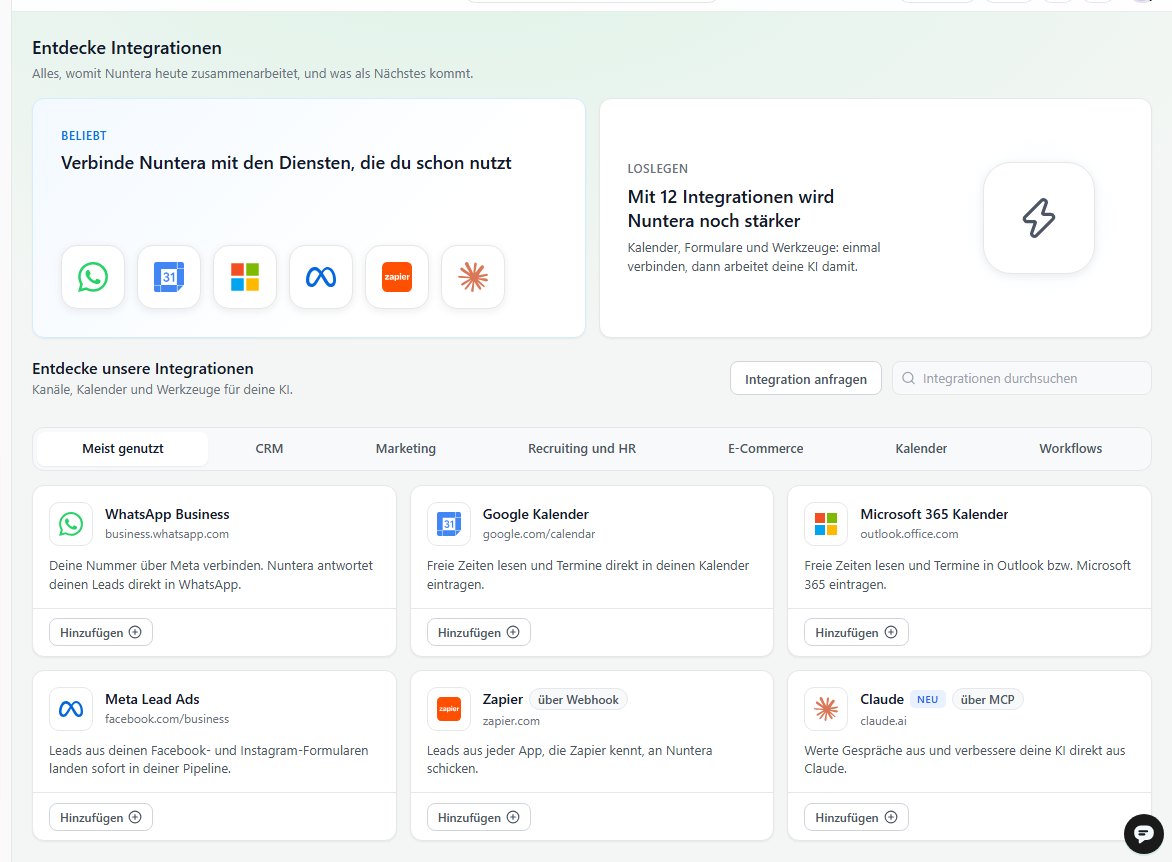
Under "Discover integrations" you see at a glance what Nuntera works with today: channels, calendars, forms and tools. What exists you add with one click; what is still missing says "Not available yet.", and you can request it.
Where to find it
On the left, open "Settings", then the "Integrations" section under "Channels". It has three entries:
- "Discover integrations": all integrations to browse.
- "Connected integrations": only the integrations that are connected, with their status. You manage and disconnect them there; you connect them under "Discover integrations" (Integrations).
- "Webhooks": leads from Zapier, Make, n8n, forms and, in Nuntera WhatsApp, Facebook pages (Lead intake).
How it works
Add an integration
- Pick a tab at the top, for example "Most used", "CRM", "Marketing", "Calendar" or "Workflows", or search by name at the top right. The search covers all tabs. Tabs that do not fit in the row are under "More".
- Click "Add" on the tile. A window takes you through the setup step by step: what you get, connect, done. When you connect, it shows in large type which workspace you are connecting for; for Stripe and WhatsApp the name is in the button too. Check it before you click. If the setup goes to Stripe or the calendar provider, the window opens again when you come back and shows whether the connection is in place.
- WhatsApp, calendars, the ad account, Stripe, the Meta Conversions API and the CRM channels say "Connected" on their tile once they are set up (the Conversions API once it is switched on; a setup you only started stays "Add" so you can finish it); "Manage" takes you to their settings. Whether leads arrive through webhooks or a Facebook page you see under "Webhooks".
Request an integration
- Next to "Discover our integrations", click "Request an integration".
- The chat window at the bottom right opens. Write briefly which integration you need and what for.
In Nuntera CRM
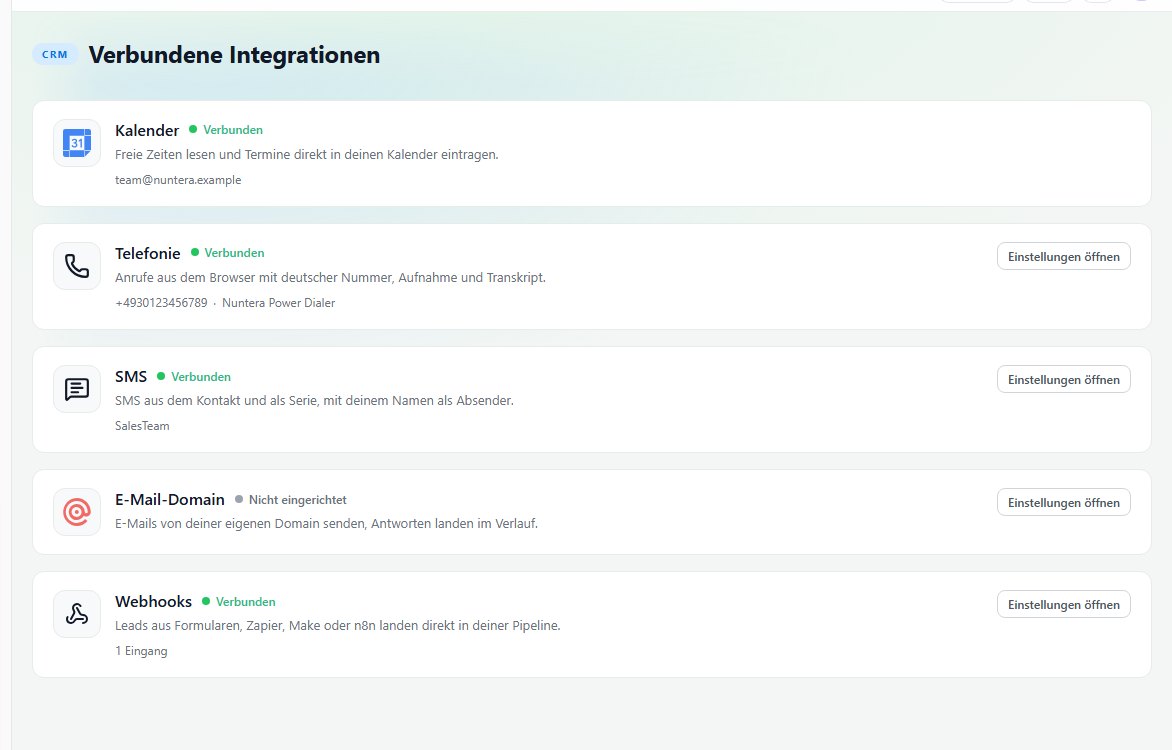
There, "Discover integrations" lets you set up SMS, your email domain and webhooks for Zapier, Make, n8n or Typeform; the Nuntera team sets up the phone. WhatsApp, Meta, Stripe, Claude and ChatGPT are not available there. Under "Connected integrations" you see per channel whether it is set up, and "Open settings" takes you to the page where you change it.
Good to know
- "via webhook" means the integration sends leads to Nuntera through your webhook address. That applies to Zapier, Make, n8n and Typeform.
- "via MCP" means you work with your workspace from Claude or ChatGPT (AI assistants).
- The phone number in the CRM is set up for you by the Nuntera team. Its tile therefore says "Set up by the Nuntera team" instead of "Add".
- A calendar you connect in Nuntera WhatsApp under "Discover integrations"; Nuntera CRM uses the same one. If you only have Nuntera CRM, you cannot connect one yourself yet.
- Connecting and disconnecting always happens on the integration's own page, not in the catalog.
Frequently asked questions
Why does a well-known app say "Not available yet"?
We also show what we do not connect yet. Many apps already reach Nuntera today through Zapier, Make or n8n via webhook. If one is missing for you, click "Request an integration".
Who may add integrations?
The same roles as under "Connected integrations": the window uses the same setup, and Nuntera checks the role there. The catalog itself shows the same to everyone.