

Help CenterGetting started
Integrations
Last checked against the product: October 3, 2026
What it's about
Under "Integrations" you connect what your AI works with: your WhatsApp number, your calendar and your ad account at Meta. Below that you teach your AI its own tools, for example a rate calculator. Access keys for Claude and ChatGPT live under AI assistants.
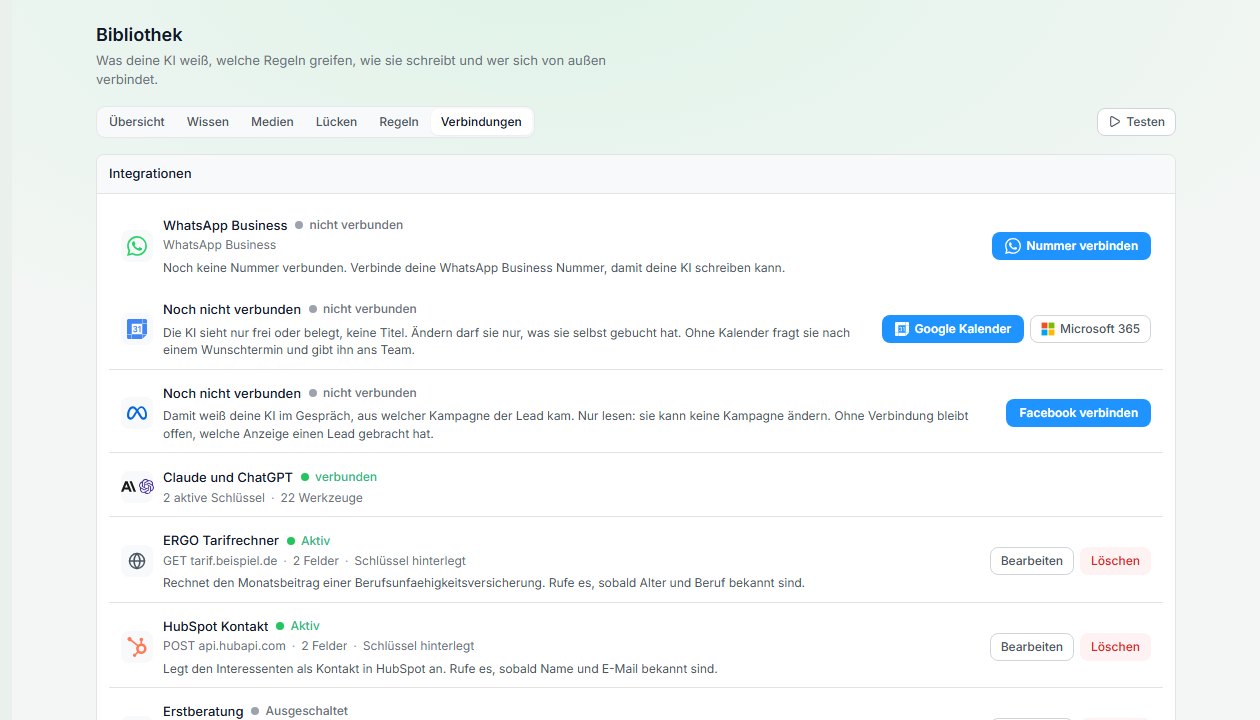
Where to find it
On the left, open "Settings", then "Connected integrations" in the "Integrations" section under "Channels". Each integration is its own card with a logo, its name and one sentence on what it brings. Next to the name you see its status ("Connected" or "Not connected"). The button to connect is at the top right; once connected, "Reconnect", "Choose accounts" and "Disconnect" are in the card's "…" menu. Below comes "Your own tools". The lead intake (Zapier, Make, website, Facebook pages) has its own entry "Webhooks" in the same section (Lead intake). Everything there is, including what is not available yet, is under "Discover integrations" (Discover integrations).
How it works
Connect your WhatsApp number
- In the "WhatsApp Business" card, click "Connect number".
- In Meta's window, choose your business and your number, and go through to the last step.
- After that you see "WhatsApp number connected.", and the card shows your number. "Disconnect" in the "…" menu asks first.
Connect your calendar and ad account
- For the calendar, click the button of your provider ("Google Calendar" or "Microsoft 365") and agree in the window. Nuntera then asks "Connect <your address>?": check the address and tap "Connect". If you don't know it, tap "Cancel".
- For the ad account, click "Connect Facebook" and agree at Facebook. Nuntera then asks "Connect <your name>?": if that is you, tap "Connect", otherwise "Cancel".
- Then choose "Choose accounts" in the card's "…" menu, switch on the ad accounts you want and "Save selection".
If your browser blocks the window, Nuntera goes to Google or Facebook in the same tab; afterwards tap "Back to Nuntera" and confirm there. How the AI books appointments with the calendar is described in Calendar and appointments.
Access keys for Claude and ChatGPT
You no longer create keys here but under "Settings", "AI assistants". That is where you connect Claude Code, and under "Manage keys" you see your keys and recent calls and revoke a key (AI assistants). Claude and ChatGPT connect without a key by signing in, see Connect with Claude or ChatGPT; they then appear under "Manage keys" in "Connected apps".
Create and switch on your own tool
- Click "Add tool".
- Fill in "Name", "Title" and "What is it for?". This sentence tells the AI when it needs the tool.
- Under "Kind", choose "Calls an address" (your own system) or "Fixed answer" (a fixed text). For "Calls an address" you enter the "Address" of your system, for "Fixed answer" the "Answer text". If your system needs a key, the address must start with https.
- Under "Fields", set what the tool asks for, for example "age" and "job". Then "Create".
- Check it with "Edit" and "Try it now". This really calls your system.
- You switch it on and off in the same window with "Active" and "Save".
What the AI does
- WhatsApp: it receives and answers your leads' messages through your number.
- Calendar: it sees when you are free or busy, without the titles of your appointments, and books by itself.
- Ad account: it knows in the conversation which ad and campaign a lead came from.
- Your own tools: if a switched-on tool fits the conversation, it calls it with the lead's details and answers with the result. If your system doesn't respond, it is instructed not to give the lead a result and to ask your team.
Good to know
- Owners and admins can make changes. Agents and viewers see everything but change nothing.
- If your WhatsApp access expires soon, the card shows a warning, and owners and admins get an email. Then tap "Reconnect" in the WhatsApp card and go through Meta's window with the same number. You don't need to disconnect for that (WhatsApp connection and templates).
- At most 8 of your own tools are active at the same time. A new tool is switched on right away and can be used from the AI's next reply.
- Headers when editing: if you change a tool's "Headers", enter every row again in full.
Frequently asked questions
I agreed, but Nuntera does not ask "Connect …?".
Go back to the Nuntera tab. Nuntera checks once more and shows the question. After 10 minutes, connect again.
Can I connect ChatGPT or Claude in the browser?
Yes, as a connector with a Nuntera sign-in, without a key: Connect with Claude or ChatGPT. You need the access key for Claude Code and your own programs.
Where do I create an access key?
Under "Settings", "AI assistants", then "Manage keys" at the bottom (AI assistants).
I don't see a "Connect number" button.
Then connecting has not been enabled yet. Get in touch with support.
The AI never calls my tool.
Check that it is set to "Active" and that "What is it for?" clearly says when it is needed.
"Try it now" reports "This no longer exists …".
The tool is switched off. Switch "Active" on, save, then try it.
I disconnected the calendar or ad account. Is the access gone everywhere?
In Nuntera, yes. You remove the permission in your Google or Facebook account there yourself.