

Help CenterGetting started
The top bar
Last checked against the product: October 26, 2026
What it's about
The top bar sits above every page. On the left you see where you are, in the middle you search pages and contacts, and on the right you find feedback, help, your media, your notifications and your profile.

Where to find it
- Left: the button that collapses and expands the sidebar, and the path, for example "Tools › Library › Rules". Clicking the page in the path takes you back.
- Middle: "Search everything…", or Ctrl+K from anywhere (⌘+K on a Mac).
- Right: "Feedback", "Help", the folder for your library, the bell and your profile picture.
How it works
Search
- Click "Search everything…" or press Ctrl+K.
- Type, and pick "Pages" or "Contacts" at the top if you like.
- Choose with the arrow keys and open with Enter.
Give feedback
- Click "Feedback" at the top right.
- Write and click "Send" (or Ctrl+Enter).
Look at your media
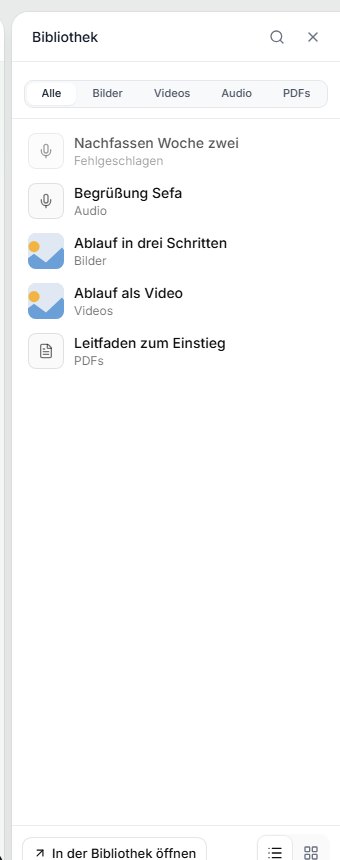
- Click the folder. Your library opens on the right.
- Filter by "Images", "Videos", "Audio" or "PDFs" at the top, search with the magnifier, switch between list and grid at the bottom. A click shows an item in large.
- "Open in the library" takes you to uploading and permissions. × or Escape closes the column.
Notifications
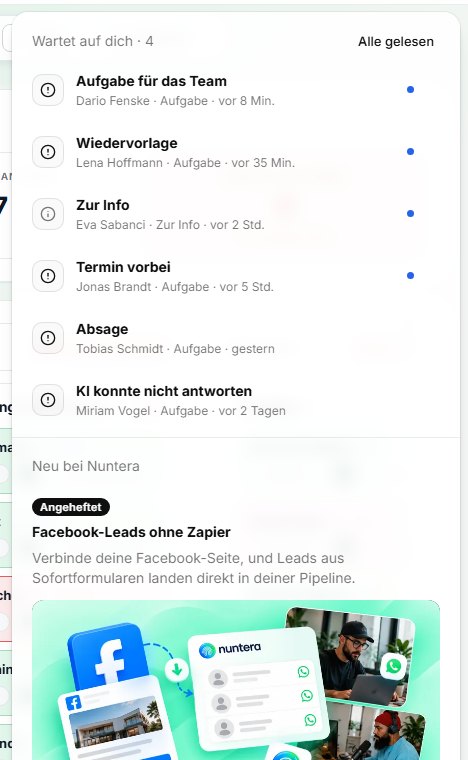
- Click the bell. "Waiting for you" lists the latest open tasks, follow-ups, appointment questions and requests in your workspace.
- Clicking a card opens the lead's chat.
- Below, "New in Nuntera" shows what is new.
Profile, workspace, language
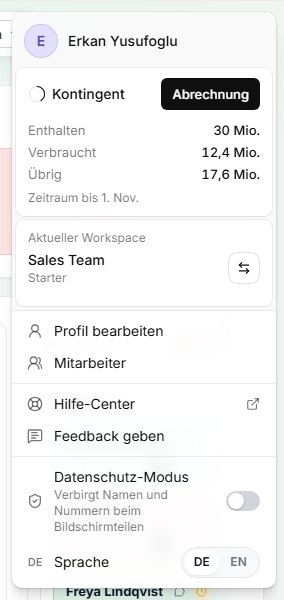
- Click your profile picture.
- Here you switch workspace, pick Light, Dark or System under "Appearance" (Light and dark), edit your profile, turn on "Privacy mode", choose the "Language" and sign out.
Good to know
- Read items disappear. What you opened in the bell or marked with "Mark all read" no longer shows there for you. That does not finish it: the card stays open in the lead's chat until someone takes care of it, and your colleagues still see it.
- Task without a lead. A task for the team that is not tied to a lead, such as a website booking without a phone number, opens right in the bell: a click shows its text, "Done" closes it. "Mark all read" leaves it in place. Owners and admins can do this.
- The quota (included, used and remaining tokens) and the ring around the profile picture are only visible to owners and admins.
- Feedback goes to the Nuntera team. For a question that needs an answer, Gary replies at the bottom right.
- On a phone "Give feedback" and "Help center" sit in the profile panel, and search is a magnifier.
- While your profile or the setup with Gary is waiting, only your profile picture works in the bar (on a phone, the menu as well).
- Privacy mode hides every lead in Nuntera WhatsApp: names on the board, in contacts and appointments, phone, e-mail and fields, in search and the bell. In the chat the text stays readable, only the lead's name, number and e-mail appear masked. Your team's names stay visible.
Frequently asked questions
Where did "Sign out" go?
Into the profile panel at the top right, at the very bottom.
Why don't I see a quota?
Only owners and admins of the workspace see the quota.
Why is there a dot on the bell?
There are cards you have not seen there yet, or something new under "New in Nuntera".