

Help CenterDaily work
Import and export leads
Last checked against the product: October 25, 2026
What it's about
You bring a contact list from Excel or Google Sheets into your pipeline, for example when you switch from another CRM or after a trade fair. The other way round, you download all your leads as a file, for an analysis in Excel for instance.
Where to find it
In the "Pipeline" or under "Contacts", click "Actions" at the top right. There you find "Import leads" and "Export leads". Only owners and admins see both.
How it works
Import leads
- "Actions", then "Import leads".
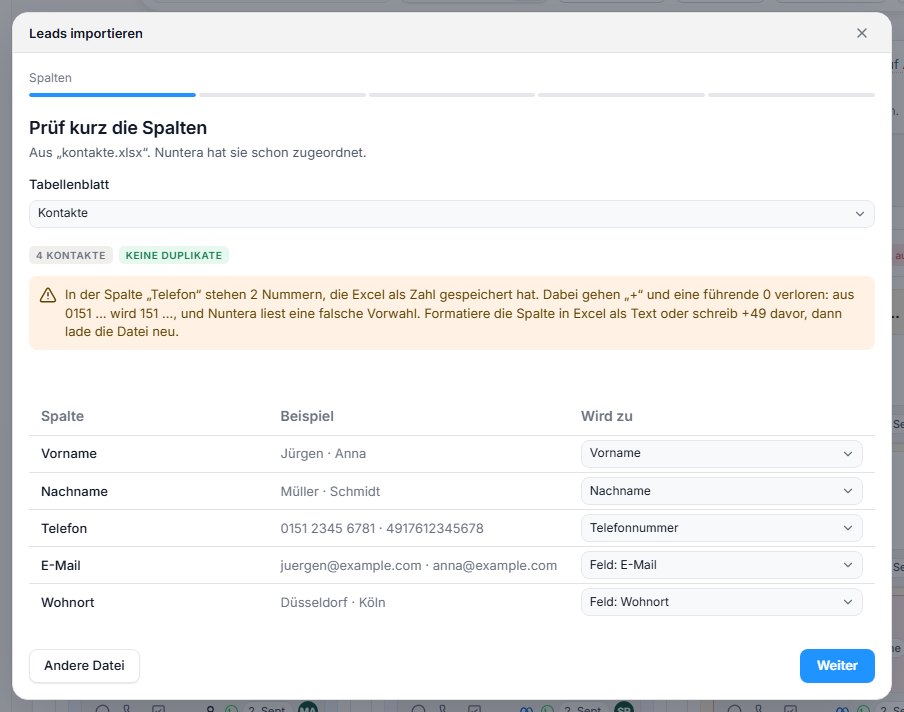
- Drag your file into the window or click "Choose file". Excel files (.xlsx, .xls, .ods) and CSV work as they are; the "Sample CSV" shows you what the list should look like. If your Excel file has several sheets, you pick one in the next step.
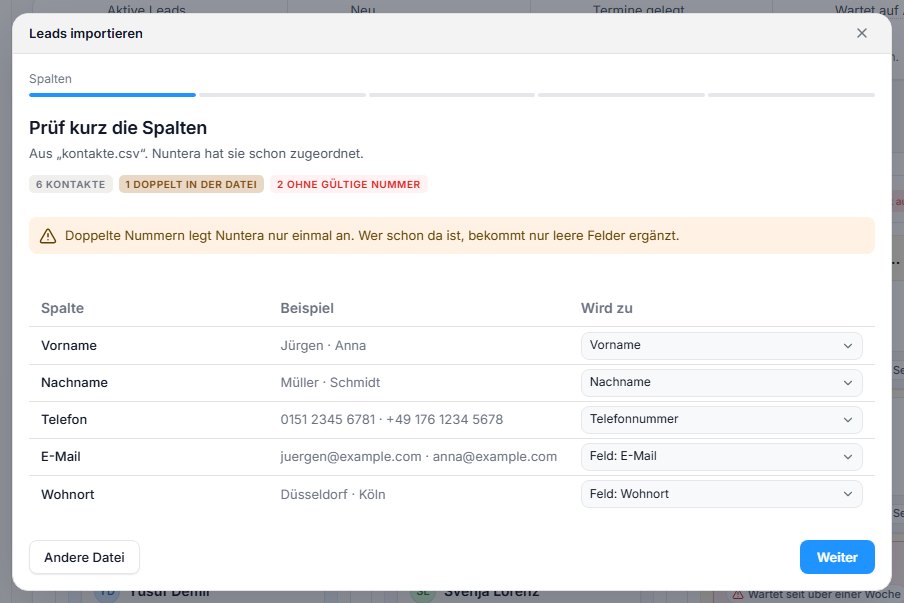
- Nuntera analyses your leads and briefly shows what it recognised: how many contacts, which columns and whether numbers appear twice.
- "Check the columns": for each column, check under "Becomes" whether it is right. One column has to be the phone number. Then "Next".
- "Where should the leads go?": under "New leads land in", choose the state new leads appear in on the board. For a first message, under "Consent and first message" switch on "These contacts agreed to be messaged on WhatsApp", fill in "Where does the consent come from?", switch on "Send a first message on WhatsApp" and pick a template.
- Click "Import N contacts". At the end you see how many are new, how many were already there and which rows were skipped, with the reason; with very many, the first 200 one by one.
Export leads
- "Actions", then "Export leads".
- Optionally choose a state under "More options" if you only need part of them.
- "Download CSV". The file opens directly in Excel and Google Sheets. Dropdown fields appear as readable answers, and you can import the file again as it is.
What the AI does
Nuntera does not message imported contacts on its own. If you switched on a first message during the import, new contacts get it spread over the day and only at suitable times in their time zone. When someone replies, your AI takes over the conversation. It knows the contact comes from a list and stays friendly and restrained.
Good to know
- No duplicates. A number that already exists is not created again. Only its empty fields are filled, name and state stay.
- The file is an Excel or CSV file of up to 20 MB and 50,000 rows.
- Phone numbers in Excel: safest is a column formatted as text, with the country code (+44 7700 …). If Excel stored numbers as numbers, the "+" and the leading 0 are gone; Nuntera then shows a yellow note before the import.
- Rows without a readable number are skipped. Write numbers with the country code, for example +44 7700 …. A number starting with 0 is read in your workspace default country (Settings › General), or in the country of the "Country" column when you map it; so with Germany as default a UK number like 07700 … needs the +44.
- First message only to new contacts and only when you state where the consent comes from. At most 200 go out a day, the rest follow after. If a contact writes first or your team messages them, it is dropped.
- Template marked "Needs a first name"? It only goes to contacts with a first name. Without a connected WhatsApp number, Nuntera does not accept an import with a first message; switch it off then.
- Keep the window open until the import is done: it runs in your browser and stops if you close the tab. "Cancel" ends it as well. Whatever was imported until then stays; for the rest, import the same file again, contacts already created then count as "Already there".
- The export contains personal data. Every export is logged.
Frequently asked questions
Why don't I see "Import leads"?
Only owners and admins can import and export. Ask one of them in your team.
Can I undo an import?
No. You delete created leads like any other lead. If you import the same file again afterwards, Nuntera creates deleted contacts again.
Do my imported contacts get a message automatically?
No, only when you switch on a first message during the import and state where the consent comes from.
What is in the exported file?
Name, phone, state, source, who is responsible, when the lead was created and last active, whether it is opted out or frozen, consent and all your fields.