

Help CenterGetting started
Switching workspaces
Last checked against the product: November 11, 2026
What it's about
You switch workspaces in the profile menu at the top right. Under "Current workspace" you see where you are, and "Switch workspace" opens the list of your other workspaces. One click switches, and you then see the leads, campaigns and settings of that workspace. The top left of the sidebar now only holds the switch between WhatsApp and CRM.
Where to find it
Click your profile picture at the top right. The "Current workspace" card sits near the top of the menu, next to it the "Switch workspace" button with the two arrows. It is the same on your phone: the profile picture is at the top right.
How it works
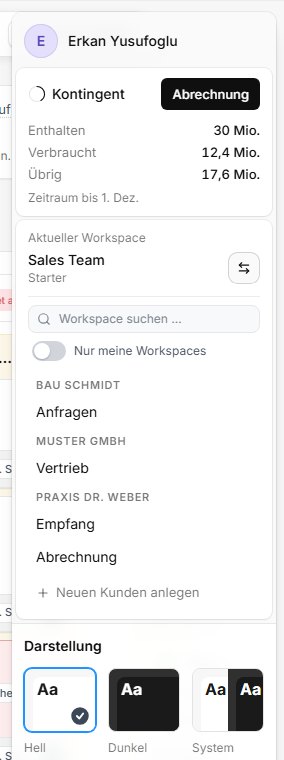
- Click your profile picture at the top right.
- Under "Current workspace", click "Switch workspace". The list of your other workspaces opens.
- Click the workspace you want to switch to. While the switch is running, the row shows a spinner and "Switching workspace". Then the menu closes and Nuntera opens the board of that workspace.
- The same menu also holds "Edit profile" (Your profile), the language and, at the bottom, "Sign out".
It also works with the keyboard: Tab to "Switch workspace", Enter opens the list, Tab and Enter choose.
Good to know
- You only see your own workspaces. The list shows every other workspace you belong to. If you belong to exactly one, it says "No other workspace."
- Every browser tab remembers its choice. If you switch in one tab, a second open tab stays in its workspace. If you reload a tab, it stays where it was. A new tab opens the workspace you chose last.
- Signing out makes this browser forget your choice. After your next sign-in you start in your first workspace again and switch if you need to. On a shared computer, nobody sees where you were last.
- After switching you start on the board. Whatever you had open before belongs to the old workspace.
- If a workspace is no longer available to you, for example because your access was removed, you are taken back to your workspace, and a notice tells you so.
- You buy another workspace right here: below the list, click "Add workspace", give it a name, pick a plan and "Continue to payment". You pay at Whop in a new tab. As soon as the payment arrives, Nuntera sets the workspace up and takes you straight into it. The new workspace has its own leads, its own WhatsApp number and its own plan.
- Gary knows it too. Ask him "Where do I switch workspaces?" (Gary).
Frequently asked questions
Where did the workspace at the top left go?
It moved into the profile menu at the top right. The top left now only holds the switch between WhatsApp and CRM, which keeps things tidier. You switch via your profile picture.
I paid, but the new workspace isn't there yet.
Setting it up sometimes takes a little longer. Click "Check later"; the workspace appears in the list in the profile menu as soon as it's ready. If it's still missing after a while, write to Gary.
Why is there no workspace in the list?
You belong to exactly one, and it is your current one. More appear as soon as you belong to another workspace.
I switched in one tab, but the other one still shows the old workspace.
That is on purpose: this way nothing ends up in the wrong workspace by accident. Just switch in the other tab too.
The list says "Workspaces not loaded".
Click "Try again". If that doesn't work, check your internet connection.
Switching did not work.
A notice with the reason appears at the bottom right, and the menu stays open. If the workspace no longer exists or you no longer have access, choose another one.