

Help CenterSet up your AI
Media library
Last checked against the product: October 3, 2026
What it's about
In the library under "Media" you collect voice messages, images, videos and PDFs that you want to send to your leads. Your team attaches them in the chat, your campaigns send them, and if you want, the AI sends a medium on its own when it fits a lead's question.
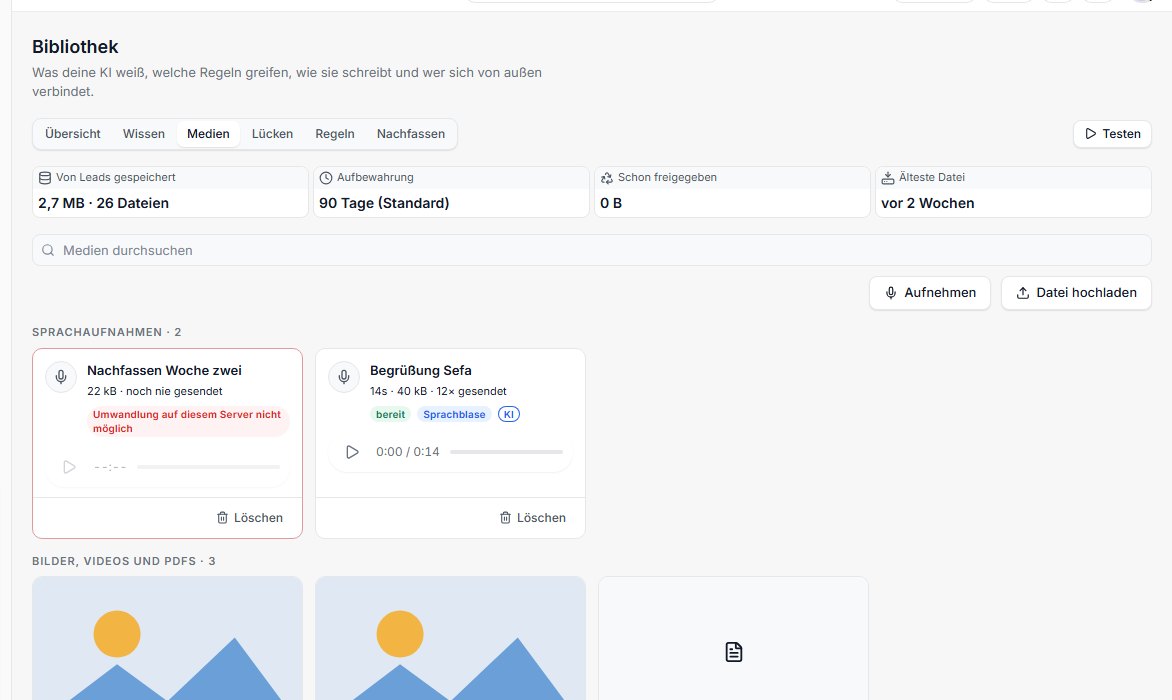
Where to find it
In the navigation under "Tools", open the "Library", then the "Media" tab. There you see the buttons "Record" and "Upload file", and below them your media as tiles. With "Search media" you find a medium by its title. "Voice recordings" come first, then "Images, videos and PDFs". You play a voice recording right on its tile with "Play".
How it works
Add a medium
- Choose "Upload file" or drag the file onto the tab.
- For a voice message, choose "Record", then "Record", "Stop", listen to it and "Save".
- The tile briefly shows "checking" and then "ready". From then on you can send the medium.
Give it a title and let the AI send it
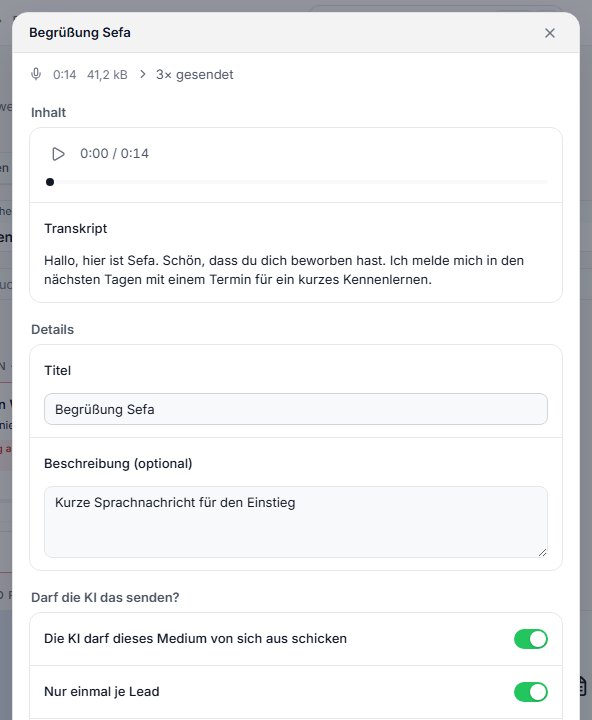
- Click the tile. Here you listen to or look at the medium and change "Title" and "Description".
- Give it a clear "Title", for example "Pay explained by the team lead".
- Under "May the AI send this?", switch on "The AI may send this medium on its own".
- In "When does it fit?", write in one sentence when the medium fits, for example "when the lead asks about pay or commission". "Only once per lead" is already switched on.
- "Save".
Set send times
Some media do not fit every hour, for example a cheerful greeting in the middle of the night. Under "When to send" you set when the AI may send a medium.
- In the medium's window, "The AI may send this medium on its own" has to be on; only then "When to send" appears. There, switch on "Only send at certain times".
- Pick a preset, "Daytime 8 am to 8 pm" or "Weekdays 8 am to 6 pm", or set your own times. You can add several time windows, also past midnight.
- Tap the days if you need to. Under "More options" you set a "Period" and block single days under "Not on these days" with "Block a day"; a blocked day shows as a pill and goes away with its ×.
- Under "When to send" the rule is shown in one sentence and changes with every setting, for example "The AI only sends this between 08:00 and 21:00 in the local time of the lead." Then "Save".
The times apply in the lead's local time. If Nuntera does not know the lead's time zone, your workspace's applies.
Choose the text with a voice note
For a voice note you decide whether the AI writes a short sentence with it.
- In the window of the voice note, "The AI may send this medium on its own" must be on.
- Under "Text with the voice note" pick one: "Automatic (recommended)", "Voice note only", "Sentence before" or "Sentence after". One sentence below it says what happens. Then "Save".
"Automatic" means: when greeting the lead, a short sentence comes first, otherwise the voice note goes alone. The choice only applies when the AI sends; in the chat you send it yourself however you like.
Set the language of a medium
So that a German lead never gets an English voice note (and the other way round), give each medium a language.
- Open the medium.
- Under "Language" pick "German", "English" or "All". Then "Save".
The AI only sends a German medium in a conversation in German and an English one only in English. "All" fits every conversation and is the default, good for images and documents without text. In the chat you send whatever you like yourself.
Attach it in the chat
- In the message field, tap the paperclip ("Attachment").
- Click a medium. You can listen to it or look at it first.
- Optionally write some text with it and "Send". With an image, video or PDF your text appears below it. With a voice message it arrives as its own message just before it.
You record a new voice message right in the chat: microphone ("Voice message"), record, "Attach". While recording, "Pause" and later "Resume" keep it one single voice message. After that it is in the library too.
Delete
On the tile, choose "Delete" and confirm the question "Delete this medium?" with "Delete".
What the AI does
The AI only sends media that you have allowed and that are "ready". If your sentence under "When does it fit?" matches a lead's message, it can send the medium in the conversation. It just sends a voice message, without announcing it; with an image, video or document it adds a short sentence. Only when greeting a lead it first writes a short sentence and sends the voice message about half a minute later, like someone recording it. If the lead writes in the meantime, its next reply waits until the voice message has arrived. With "Only once per lead" the AI never sends a medium to the same lead twice, not even if the lead already got it from the team or from a campaign. In that case it refers to it in words. What is in the description is for your team. For the AI, the title and the sentence count.
Every voice message in the library is transcribed automatically, whether it was uploaded, recorded in the app or created from Claude or ChatGPT. What is said in it appears in the medium's window below the player ("Content"), and the AI reads an excerpt of it when it decides which voice message fits.
If you set send times, Nuntera does not offer the medium to the AI outside of them; the AI then answers in text. Send times do not apply to you and your team: in the chat you can send any medium yourself at any time.
Good to know
- Formats: audio for example as MP3, M4A, WAV or OGG, images as JPEG or PNG, videos as MP4, documents as PDF. Images can be up to 5 MB, everything else up to 16 MB. Nuntera makes a voice message small enough on upload to play right away on every phone; that works up to a little over 4 minutes, and longer recordings are refused with "the recording is too long".
- 24 hours: you can only send a medium as long as the lead's last message is no more than 24 hours old. That is a WhatsApp rule.
- Deleting is final. The medium disappears from the library, from the picker in the chat and from what the AI may send. Messages that already contain it keep it. If a campaign uses the medium, choose a new one there (Campaigns).
- Who can do what: members with the Agent role can also upload, record and attach in the chat. Owners and admins can change the title and the permission and can delete. Viewers see everything and change nothing.
- Just recorded: if the chat shows "Sending failed. Your draft is still here." right after a recording, wait a moment and send again.
Frequently asked questions
Why doesn't the AI send my medium?
Check that the tile says "ready", the switch is on and your sentence clearly says when it fits. With "Only once per lead" the AI does not send it to the same lead twice. Give every medium its own title. If you set send times, the AI only sends it within them, in the lead's local time.
The tile says "cannot be sent". What now?
The file could not be confirmed as a valid image, video or PDF. Save it again as JPEG, PNG, MP4 or PDF and upload it once more. For voice messages the reason is shown on the tile.
Is my sentence gone if I switch off the permission?
No. It stays saved and is back the next time you switch it on.
Can I record a video?
No, you can only record voice messages. You upload videos.