

Help CenterDaily work
The board (Pipeline)
Last checked against the product: October 17, 2026
What it's about
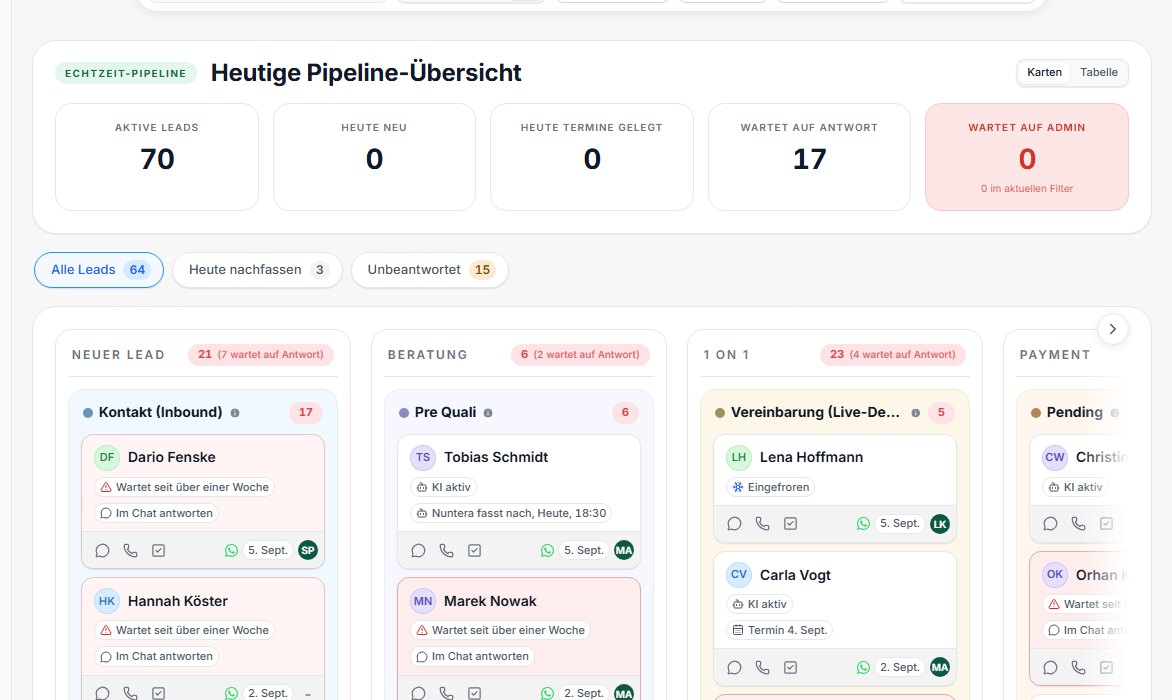
The board is your home page in Nuntera. It shows all leads as cards, sorted by stages and, within them, by states. Here you see at a glance who stands where and who is waiting for a reply, you move leads by dragging, and you open their chat with one click.
Where to find it
- In the sidebar, click "Pipeline". After signing in you are there anyway.
- At the top of the header you find the search field, the date range (button with a calendar icon, "All time" at first) and the buttons "Appointments", "Filter" and "Actions", on the far right Add lead.
How it works
Create a lead yourself
- Click Add lead in the header (or press N). Read-only members don't see the button.
- Enter the phone number (without a country code Germany is assumed) and first and last name. Email, stage and note are under More details.
- Hand over to Nuntera is on: Nuntera writes to the lead with your approved template and takes over the conversation. If there is no approved template yet, the lead is still created and Nuntera takes over as soon as the lead writes.
- Click Create lead. The card appears in its column right away. If the number already exists, nothing is created twice and you get Open lead.
Only add contacts who agreed to be contacted on WhatsApp.
Move a lead
- Grab the card with the mouse.
- Drag it into the slot of the state the lead belongs in, and let go.
- Nuntera confirms where the lead now stands. If you dropped a card in the wrong place, just drag it back.
It also works with the keyboard: reach the card with Tab, Space picks it up, the arrow keys choose the target, Space drops it, Escape cancels.
Open the chat
- Click the card (or press Enter on the card).
- The chat opens as a window over the board. When you close it, the board is exactly as it was.
What you can do in the chat is described in The chat.
The card menu
- Right-click the card, or hover over it and click "…" at the top right. On a phone "…" is always there. With the keyboard: tab to the card, then Shift + F10 or the context menu key.
- The card gets a blue frame so you can see which lead you are working on.
- Pick what you want to do:
- Conversation: "Open chat", "Book appointment" (the same dialog as in the calendar, with the lead already chosen), "Copy number".
- Pipeline: "Move ›" lists every state by stage, the current one has a check mark. "Assignee ›" lists your team and "Nobody".
- AI: "Mark as answered" (only while the lead is waiting) removes the red without sending anything, for example after you called them. "Freeze" asks first, because a frozen lead counts as opted out.
- If you move a lead into a won stage, Nuntera asks for the closing amount. It is optional and then shows on the gold card and in the lead under "Tracking".
At the very bottom, in red: "Delete" (owners and admins only). Nuntera asks first, then the card is gone and stays in the trash for 30 days. Right afterwards, "Undo" in the notice brings it back; later you restore it under Contacts in the "Deleted" tab.
Esc or a click outside closes the menu. At the edge of the window it opens towards the side that has room.
An orange card: message not delivered
If a message to a lead did not arrive and nothing else has arrived since, the lead's card is orange. At the bottom of the card there is a bell icon with "Not delivered".
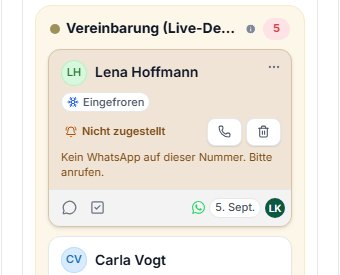
- Hover over "Not delivered" and a sentence tells you why. On a phone, tap it and the sentence opens on the card. This does not open the chat.
- Depending on the reason, for example:
- "No WhatsApp on this number. Please call."
- "24-hour window closed: only an approved template gets through."
- "Meta limit on marketing templates to this person, retry in 24 h at the earliest."
- "This person opted out of marketing messages."
- For a rare reason: "Not delivered (error …)" with the error code. That helps support.
- If the number has no WhatsApp, the card says "No WhatsApp" instead of "Not delivered". Nuntera then sends this number no more templates, neither the AI nor reminders, campaigns or outside connections. Call the lead or ask for another number. Once they write to you on WhatsApp themselves, everything is back to normal.
- Next to it are two icon buttons; hover over them to see their names:
- The phone, "Call": if a phone is connected in Nuntera CRM, the contact opens in the CRM and the Power Dialer calls straight away. If the contact isn't in the CRM yet, Nuntera adds it (or uses the one with the same number), even if it was deleted in the CRM. If it doesn't work, one sentence says why; only a hiccup offers "Try again". Without a phone in the CRM your mobile dials the number; on a computer a short note says how to set it up and offers "Copy number".
- The bin, "Move to trash" (owners and admins only), asks first, like "Delete" in the menu. Right afterwards, "Undo" brings the card back.
The chat shows the same reason under the message, in a bit more detail. The card goes back to normal as soon as a later message arrives or the lead writes.
Reading a card
Every state has its colour: the area behind the cards is lightly tinted, for example "Meeting booked" green and "In clarification" lavender. That way you spot a state at a glance, even on a full board.
Each card shows the name with initials at the top. If a name is too long, hover over it and it slowly scrolls back and forth until you move the mouse away. Below it are small pills: where the lead stands, for example "AI active", "Waiting for a reply" or "Frozen", and, if something is planned, the next step, such as "Call back, Today, 3:30 PM", "Nuntera follows up, Tomorrow, 9:00 AM" or "Mia calls · Today, 5:00 PM" when the AI calls the lead next. Hover over a pill and it explains itself in one sentence.
If a lead has been waiting for a reply for more than a day, the whole card turns light red. That way you see at a glance where you need to step in.
If the AI is waiting on your team, the card turns light purple and says AI needs you (or Task from the AI). The AI asked or told you something in the chat, or it could not reply on its own. Open the chat, answer the card or mark it as read, and the colour goes away. The quick filter Open questions shows only these leads; it appears as soon as there is one. If a message could not be delivered, orange comes first.
Without opening the chat: hover over AI needs you (on a phone: tap it). A small window shows what the AI wants to know, with the same buttons as in the chat: Answer, Done, Approve or Mark as read. If there are several, the top says 1 of 3; after each card the next one moves up, and after the last one the window closes and the colour is gone. While the window is open, the lead's card is framed. A booking request or the question about how an appointment went is still decided in the chat; Decide in chat takes you there. The window sits next to the card, so you still see the card itself. In the table view it works the same way through the purple speech bubble in the name column; there the row is framed.
At the bottom of the card, on the left:
- Speech bubble: opens the chat.
- Phone: calls the lead (straight from Nuntera when the CRM phone is connected).
- Check box: adds a task, for example "call tomorrow at 9:00".
At the bottom right:
- Source logo: where the lead came from, for example the Meta sign for a Meta lead form, also when the lead came through your funnel. Hover over it to see the source and, when known, the campaign. If the lead simply wrote to you on WhatsApp, there is no logo. In the table view the same sign is next to the name.
- WhatsApp sign: hover over it to see the full number. Click it to copy the number.
- Time: when something last happened, for example "2 h ago" or "Sep 5". Hover over it to see the exact date and time.
- Circle: who owns the lead. Click it to change the person.
The numbers at the top
At the very top is a bar with four numbers: Active leads, New, Booked and Waiting for reply. Hover over a label and it says in one sentence what it counts.
- New and Booked follow the date range at the top. Below each, you see how the number changed compared with the equally long period before, green going up, red going down. With "All time" there is no comparison.
- Booked counts appointments booked in the time range, whatever day they are for. Cancelled ones don't count. Without a filter it is the same number as in Reports for the same time range.
- Active leads and Waiting for reply show the state right now, whatever time range is selected.
- Waiting for reply counts leads whose last message has been unanswered for over 5 minutes. Opted-out leads and leads where a message did not arrive don't count. Above zero the number is red. Clicking it sets the quick filter "Unanswered", which shows everyone waiting, including the last 5 minutes.
- The note "(1 need reply)" on a column counts by the same rule as the bar, just for that column.
- If the board is briefly not live, the last numbers stay and a line below says they are not up to date right now.
Quick filters
Above the board are three buttons with a number:
- All leads: everything your other filters show.
- Follow up today: leads with a task or a planned Nuntera message that is due today, including anything overdue.
- Unanswered: leads that are waiting for a reply.
One click is enough, cards and numbers follow right away. Go back with "All leads".
If you have a reactivation campaign with leads (for example an uploaded lead list), the "Reactivation" button sits to the right of them. One click opens the list of your active campaigns with the number of their leads, newest first. Pick one and the board, the table and the key figures show only its leads, and the button carries its name. The ✕ next to it or "All leads" takes you back. The choice is part of the address, so a bookmark or a shared link opens it directly. At the bottom of the list, "Manage campaigns" takes you to your reactivation campaigns. Without a campaign there is no button.
Search and filter
- Type a name or a number into the search field. Part of it is enough.
- Open the date range ("All time" at first) to see only leads whose last activity falls in that period or who were created in it: a preset such as "Today", "Yesterday" or "Last 30 days", or two days in the calendar. Apply makes it count, "Cancel" leaves everything as it was. Your browser remembers the range for next time; "Clear filter" sets it back to "All time". If a yellow notice says the period is not available right now, you see the last 7 days.
- Under "Filter" you show only leads that are waiting for a reply, that are "Frozen" (the AI stays silent and you don't write to them) or that are "Opted out" (nothing automatic goes out anymore). Under "Owner" you choose a person or "Nobody assigned". A click on "Status" opens the states of your pipeline, such as "Test pending" or "Call booked", each with the number of leads in it. One click shows only those leads, and you can add more states; the menu stays open while you do. This applies to cards, table and numbers.
- "Clear filter" sits at the very top of the menu and stays visible while you scroll. It shows everything again, all states included.
Drop as won or lost
- Drag a card. Two fields appear at the bottom: "Won" and "Lost", each with the stage the lead goes to.
- Drop the card on one of them. The same dialog as "Next step" on the contact page opens: for Won you can enter the amount, for Lost you pick a reason.
- Save with "Mark as won" or "Mark as lost"; the lead then stands in the won or lost stage. "Cancel" leaves the card where it was.
The board as a table
- At the top right of the board you switch between "Cards" and "Table". This browser remembers your choice.
- The table shows the same leads as the cards, with the same search, time range and filters, and has the columns Name, Stage, State, Assignee, Latest purchase and Last activity.
- Click a column header to sort across all leads, click it again to reverse. At the bottom you page through 50 at a time.
- Clicking a row opens the chat, just like clicking the card.
- If a message to a lead did not arrive, an orange bell sits next to their name. Hover over it to see "Not delivered" and the reason, as on the orange card.
- Tick several leads to use "Assignee", "Move", "AI" and (owners and admins) "Delete", exactly as under Contacts.
Keep an eye on appointments
- Open "Appointments" in the header. It shows the appointments for today, tomorrow and this week.
- A click on an appointment opens the lead's chat, and "Open week grid" takes you to the calendar (see Calendar and appointments).
What the AI does
- The AI can move leads into the right state itself during the conversation, so you don't have to drag every card by hand.
- If the AI puts a lead into another state, you see it on the board within a few seconds, without reloading the page: the card glides into its new slot and briefly carries the badge "Moved by Nuntera".
- If you move a lead yourself, Nuntera remembers it. With its next reply the AI knows that you put the lead there by hand, and continues from there.
- Moving doesn't write anything to the lead. No message goes out just because you move a card.
Good to know
- Menu and roles: Viewers see "Open chat" and "Copy number" in the menu.
- Unfreeze: A frozen lead shows "Unfreeze …" in the menu. It takes you to the chat, because unfreezing needs the sentence in which the lead asked for messages again.
- The colours: red means the lead is waiting for a reply. Gold means it is in the won stage. Orange means the last message did not arrive (this comes before red and gold). Otherwise the card is green. If you hover over the small icons on a card, Nuntera explains what they mean.
- The board is live: new leads, moves by the AI and moves by your team appear by themselves, with the matching numbers. The badge on the card tells you who it was: "Moved by Nuntera", "Moved by the team" or "New". While you are holding a card, the board waits until you let go, so nothing jumps away under your hand.
- The latest interaction is on top: in every column, the lead something last happened with is at the very top. When the lead writes, the AI replies, your team sends a message or Mia reached the lead or left a voicemail, the card glides up. If your mouse is on a card or its pop-up is open, that column waits until you are done.
- Notices at the very top: if the board is briefly not live (for example without internet), it says so at the top below the header until the connection is back. More in System notices.
- A slot shows 12 cards at first. You get the rest with "Load more".
- Filters stay as long as you stay on the pipeline, even while a chat is open. If you switch pages, they are back to the start afterwards.
- Sharing your screen: "Actions" → "Hide data" makes the phone numbers unreadable. It is quicker with Ctrl+Shift+H. The eye icon reveals a single number again.
- Who may move cards: owners, admins and agents. Viewers see the board but can't move anything.
Frequently asked questions
The AI moved a lead, but the card is still in the old slot.
Usually it is there within a few seconds. If you are holding a card, the move arrives as soon as you let go. If "The board is not live right now" is shown at the top, the connection is missing. If the lead doesn't match your filter, it doesn't appear. If none of that helps, reload the page.
Why does a card say "Moved by Nuntera"?
The AI or a campaign has just put the lead into this state. "Moved by the team" means someone on your team did it, "New" that the lead has just arrived. After a few seconds the badge disappears again.
I can't find a lead by their number.
Type the number without the leading zero, so "176…" instead of "0176…". The field doesn't search for an email address from the conversation today. Use the name or the number instead.
My card jumps back after I drop it.
As a viewer you are not allowed to move cards. Otherwise try again. If it still doesn't work, send support a screenshot of the notice above the board.
How does an orange card go back to normal?
By itself, as soon as a later message reaches the lead or the lead writes. If the lead has no WhatsApp, call them. If the 24-hour window is closed, only an approved template reaches them. If the orange is still there after a new message, reload the board.
Why isn't a card orange although the chat says "Not sent"?
Orange shows that a message did not reach the lead. What Nuntera holds back on purpose (the lead opted out, the AI is paused, the lead is frozen) colours nothing, and neither does a problem with your WhatsApp account or with a template. An account problem is shown at the very top as a system notice, because it affects all leads (System notices).
An appointment is today, but "Booked today" doesn't count it.
The tile counts when an appointment was booked, not when it takes place. Today's appointments are under "Appointments" in the header. A cancelled appointment doesn't count either.
Where do I create new stages or states?
Not on the board. How that works is described in Pipeline and fields.