

Help CenterDaily work
Calendar and appointments
Last checked against the product: November 8, 2026
What it's about
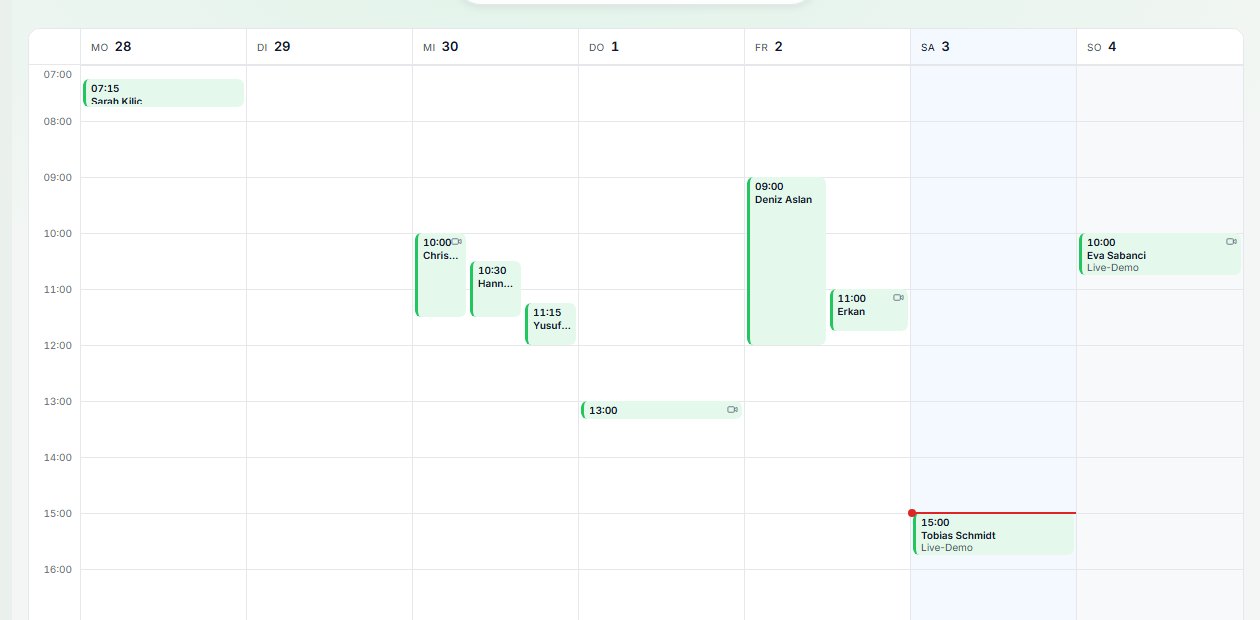
In the calendar you see all appointments that were booked through Nuntera, as a day, week, month or agenda. There you create appointments yourself, move them or cancel them. If your calendar is connected, the AI also books by itself in the WhatsApp chat.
Where to find it
- "Calendar" in the navigation. At the top you choose "Day", "Week", "Month" or "Agenda" (or the keys D, W, M and A). Nuntera remembers your choice; on a phone the calendar starts with the agenda.
- With the arrows next to the heading (or ← and →) you move a day, a week or a month, "Today" (or the T key) takes you back.
- In the Pipeline, the "Appointments" button shows the appointments of the next seven days, sorted by "Today", "Tomorrow" and "This week". "Open week grid" takes you to the calendar.
- You connect your calendar under Settings, Discover integrations: Google Calendar or Microsoft 365 (Outlook). With Google every appointment gets a Meet link, with Microsoft 365 a Teams link (Integrations).
How it works
All appointments at a glance
- Choose "Agenda". You see the appointments by day, with time, contact, title and link.
- At the top choose "Upcoming" or "Past", or search by name or title. With "Hide cancelled" the cancelled appointments disappear from the list; your browser remembers the choice.
- A pill only shows when something differs: "Cancelled", "Attended", "No-show" or "Not in calendar" for an appointment that only exists in Nuntera.
- Clicking the initial or the name opens the contact, clicking the row opens the appointment.
In "Month" each day shows up to three appointments, the rest behind "+n more"; clicking it opens the day.
Create an appointment
- Open "Calendar", choose "Week" or "Day" and page to the right week or day.
- Click on a free spot at the time you want. "New appointment" opens.
- Under "Contact", search by name or number and pick the contact. If they aren't there yet, you create them with "Add a new contact" and their phone number including the country code (Contacts).
- At the top of the window you see the month: days with a dot have free time, crossed-out days are fully booked. Tap a day and its free times appear below. Tapping a time puts it into "Starts". On the phone you pick the time from a list. Free means the same as for the AI: long enough for the chosen duration and within your reachable hours.
- Check "Starts", "Duration" and "Title", then "Create appointment". You can also type another time into "Starts". The appointment lands in your connected calendar and appears in the grid.
Without a connected calendar the month only shows the appointments in Nuntera, with the hint "Connect your calendar to see here what is busy." If your calendar is not answering, Nuntera shows no free times rather than wrong ones, and you type the time yourself.
View, move or cancel an appointment
- Click the appointment. You see the contact, time, video link and what it's about. In the Day and Week grid a right click opens the menu directly, in the agenda the "…" at the end of the row.
- "Move": choose a new time, briefly note the reason under "Why move it? (optional)", then "Move".
- "Cancel appointment": Nuntera asks "Cancel this appointment?". Enter a reason if you like, then "Cancel appointment". The appointment stays in the grid, struck through. The lead leaves the appointment state and goes back to "Clarifying" or to the stage before, without a message to them.
- Below the details, "Open contact" takes you to the contact page, "Open in CRM" to the linked contact in Nuntera CRM (if there is one) and "Open chat" straight into the conversation.
One appointment for everyone (group appointment)
Do you invite all suitable leads to the same appointment, for example a Teams call every Wednesday at 6 pm? Then open Library → Follow-up, switch on “Fixed group appointment”, choose day, time and length, paste the link for everyone and tap “Save group appointment”. From then on the AI reserves a spot in the next appointment for every lead who says yes and sends them the link. Reminders and the question afterwards whether they made it work as for any appointment. You don't need a connected calendar for this. The group appointment is never full: the AI confirms a spot to every lead, however many have joined.
What the AI does
- With a calendar connected, the AI sees when you are busy. It only sees free or busy, never the titles, locations or attendees of your appointments.
- Busy means the same for the AI as for you in the "New appointment" window: your calendar and the appointments that only exist in Nuntera. If a lead asks for such a time, the AI says it is already taken and suggests free times.
- It is designed to suggest free times to the lead, book after the lead agrees and confirm the day, time and video link in the chat. If it does not have the lead's email address yet, it asks for it once in the same message and sends the invitation afterwards. The booking never waits for it. If the contact later sends a different address, the invitation goes to the new one on its own. In the appointment window you can also send it yourself with "Send invitation to new e-mail".
- You know right away. Every booking, move or cancellation sends owners, admins and the assignee an email with the lead, time, link and contact details; "View appointment" opens it in Nuntera.
- It can move or cancel the appointment of the lead it is currently writing with. It can't reach other appointments.
- It knows what your team changed in the calendar, including the reason, and can answer the lead about it.
- Without a connected calendar it asks for a preferred time, never suggests one itself and passes the wish on to your team; your team confirms the appointment.
- It knows which calendar is connected and calls the link what it is: a Teams link with Microsoft 365, a Meet link with Google. Gary knows it too when you ask him.
Good to know
- Without a connected calendar you can't create appointments, not even by hand. Connect it first under Settings, Connected integrations.
- One open appointment per contact. A past appointment counts too. For a follow-up appointment you move the old one to the new time.
- The grid only shows appointments from Nuntera. Best change them here too, then it applies right away. If the calendar sync is enabled for your account, Nuntera takes over a cancellation or new time from your Google or Outlook calendar within about 15 minutes, faster shortly before the appointment. Otherwise Nuntera and the AI know nothing about it. Only appointments Nuntera created itself are read.
- The lead gets no WhatsApp message from Nuntera when you book, move or cancel by hand. Write to them in the chat, or the AI gives them the information as soon as they ask.
- Working hours and breaks are unknown to the calendar. If the AI should respect them, write them into the system prompt or into your agent's knowledge.
- On a phone the week is a list. You create appointments there in "Day", and move or cancel them through an appointment in "Day" or "Agenda". On a phone "Month" shows dots; tap the day to open it in "Day".
- The agenda covers 60 days ahead and back; anything further away is in the month.
- Cancel appointments in Nuntera, not only in Google or Microsoft Calendar. A cancellation made only there doesn't reach Nuntera: the lead stays on the appointment state and reminders keep running.
- Roles: Owners, administrators and agents edit appointments, viewers only see them: they see no buttons to book, reschedule or cancel, in the Nuntera CRM calendar as well. Owners and administrators connect the calendar.
- Nuntera checks that state and appointment match. If a contact is in an appointment state but Nuntera knows no appointment for them, Nuntera looks in your connected calendar. If it finds the appointment Nuntera itself booked for this contact, it adds it quietly, so the reminders run as well. Otherwise you get a card in the chat: “Appointment missing from the calendar: please add it”; if the calendar only has a possible appointment, the card names it for you to check. A card also comes when a confirmed appointment is coming up but the state does not match it. Nuntera never changes a state on its own and never writes to the contact.
- No double bookings. Before an appointment is created or moved, whether by the AI, by hand, in the CRM or through ChatGPT/Claude, Nuntera checks that the time is free: in your appointments in Nuntera and in your connected calendar. If it is taken, nothing is booked and the AI offers the contact a free time. An appointment that ends when the next one starts does not count as taken.
- If your calendar does not respond: If Nuntera repeatedly cannot read the free times of your Google or Outlook calendar, it pauses booking so nothing gets booked twice. A red card "Your Outlook calendar is not responding" appears at the top, and you get an email. Check the connection under Settings, Connected integrations. As soon as the calendar answers again, it continues on its own.
- What counts as busy in Outlook: entries shown as "Free" or "Working elsewhere" block nothing; "Tentative", "Away" and "Busy" do. An all-day reminder (for example "Team is in") therefore blocks the whole day as long as it is set to "Busy". Set it to "Free" in Outlook if it is only a note. In Google Calendar the same applies to "Available".
- If two appointments still end up at the same time (for example one from another system), you get a card in the chat "Two appointments at the same time: please move one" with both contacts and times.
- Appointments from another system can go into your calendar. If another program stored an appointment in Nuntera (for example a voice funnel), an owner or admin can have it put into the connected calendar through the connection to ChatGPT or Claude, with a video link. The contact does not get a second invitation. If your calendar already has something at that time, Nuntera adds nothing and sends you a card “Appointment is probably already in the calendar, please check”. Appointments that are already in the calendar by hand are never taken over.
Frequently asked questions
Why don't I see my other appointments?
The calendar only shows what was booked through Nuntera. When looking for free times, the AI still counts your other appointments as busy.
Does the lead find out when I cancel an appointment?
Not via WhatsApp from Nuntera. The AI knows about the cancellation, including your reason. If the lead received an invitation by email, they get the cancellation from your calendar.
I can't create an appointment. What's the reason?
Usually the contact already has an open appointment. In that case, move that one. Otherwise check under Connected integrations whether your calendar is still connected.
Why do most appointments have no pill?
A confirmed appointment is the normal case. A pill only shows what differs.
Can the AI read my private appointments?
No. It only sees when you are busy.
I want to switch from Google to Microsoft 365 (or the other way round).
One calendar per workspace is connected at a time. Disconnect the old one under Settings, Connected integrations and connect the new one. Appointments already booked stay in the old calendar, new ones land in the new one.