

Help CenterDaily work
Chat with leads
Last checked against the product: October 3, 2026
What it's about
In the chat you read the WhatsApp conversation with a lead and write to them yourself. You send pictures, documents and voice messages, give the AI an instruction and see in the thread what the AI has done.
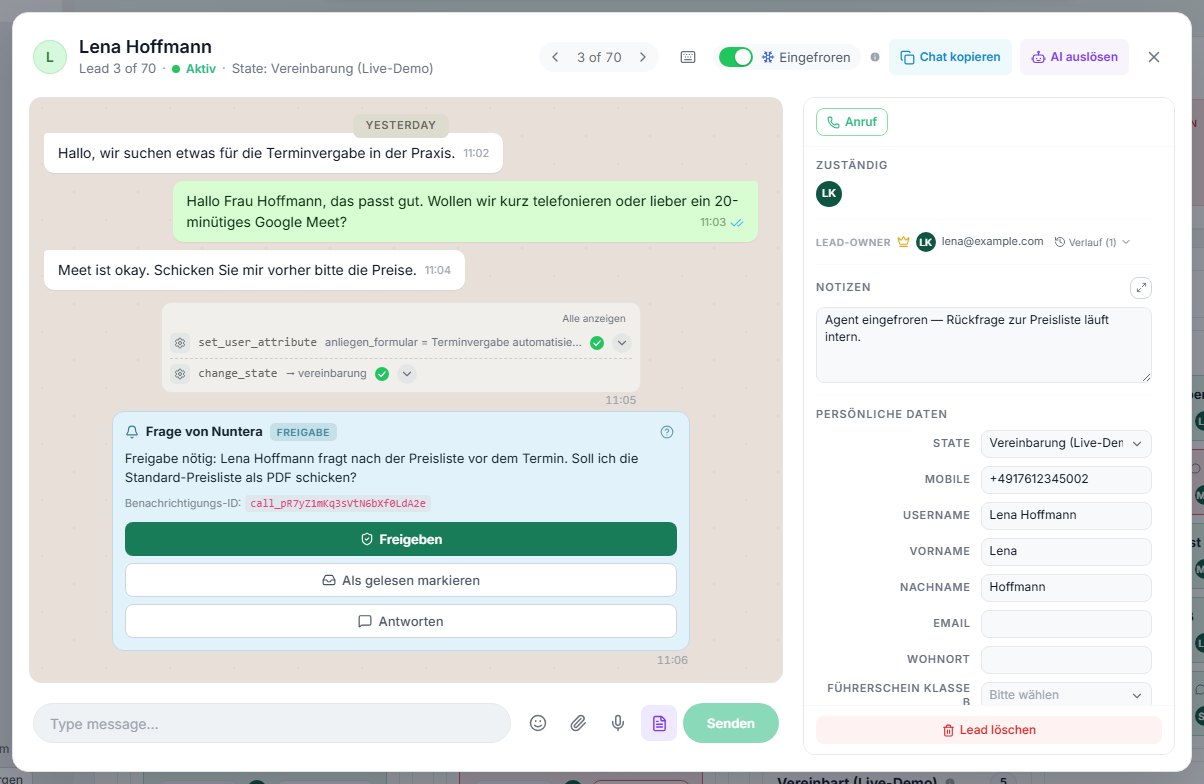
Where to find it
- In the "Pipeline", click a lead's card (see The board).
- On the contact page "Open the conversation", in the calendar "Open chat" and in a campaign "Open the chat".
- The chat opens as a window over the board. Next to it on the right is the lead panel in three tabs: Details (assignee and local time, notes, fields), Activity (appointment, follow-up, history) and Tracking (who wrote first, origin, purchases). A dot on "Activity" shows that something there is due. Empty fields open with "show empty fields".
- Above each day in the thread you see its date. While you scroll, the date at the top shows where you are; shortly after you stop scrolling it fades out, just like in WhatsApp. Phone number, email, first and last name show up as soon as the lead has them, for example from a form; what you enter wins.
- On the Activity tab you book, reschedule and cancel an appointment, add a follow-up with "+ Add" or schedule an approved template for a time. You record purchases on the Tracking tab.
- In the state history, a small icon shows who moved the lead: inbound (the lead came in), AI, timed, manual or automatic (Nuntera itself, for example after a booking in a call or a cancellation). Hover over the icon to see it.
How it works
See when the lead was last active
The top of the chat shows the last activity: "Active just now" in green, then "Active 12 min ago", and "No reply yet" while nothing has come in. What counts: a message, a reaction or your message being read. WhatsApp does not show businesses whether someone is online. If no read receipt arrives, only the other signs count.
See what time it was for the lead
Hover over the time of a message: if the lead lives in another time zone, it says for example "For the lead: 8:46 PM the day before (New York)". If the lead has the same time as you, there is no hint. When Nuntera plans a follow-up, a small line "Nuntera planned a follow-up" appears under the reply, with the time for the lead and for you; open it to see what Nuntera will do then. If the follow-up is moved, the line shows the new time; if Nuntera plans a new one later, the old line says it is no longer planned. The AI plans in the lead's local time (for example "tomorrow morning" = morning where the lead is).
Call the lead
At the top of the chat there is a phone, "Call". If a phone is connected in Nuntera CRM, one click opens the contact in the CRM and the Power Dialer calls straight away. If the contact isn't in the CRM yet, Nuntera adds it (or uses the one with the same number), even if it was deleted in the CRM: the new contact's history then says it was created again for the call. Without a phone in the CRM your mobile dials the number; on a computer a short note says how to set it up and offers "Copy number". Agents, admins and owners can make calls.
See how often you have called
On the Activity tab there is the section Calls: when you last called the lead and with what result (reached, not reached, voicemail, busy, front desk), how many call attempts there were and how often in a row they were not reached. A conversation resets that count to 0. The card on the board says the same in short, for example "Not reached 2×", and shows the last result first: "Voicemail · 13 hours ago" when you last reached the voicemail. Your AI's calls count too; if someone else answered, it says "Front desk". The same call never counts twice. With "Call again" you plan the next try as a follow-up, set to "In 2 hours".
Write and attach
- Type into the "Type message…" field and send with Enter or "Send". "Emoji" puts a character at the cursor.
- With the paper clip ("Attachment") you pick a medium from your library or upload one (see Media library). With the microphone ("Voice message") you record one right away. If you press "Send" right after, it briefly says "Preparing …": Nuntera first gets the recording ready for WhatsApp and then sends it on its own.
- Several attachments go out as separate messages, in the order in which you picked them.
Send a template
- Press the purple button next to "Send". You see the templates Meta approved, with the lead's first name already in them. On a computer, the template under your pointer shows next to the list as a WhatsApp bubble with its buttons, just as the lead sees it.
- Pick a template. It now sits as a bubble above the text field, nothing has been sent yet.
- Send it with "Send", or use the cross on the card to go back to writing.
Trigger the AI
- Click "Trigger AI" at the top.
- Optionally type an instruction, such as "tell him we're open until 2 pm on Saturdays". Without an instruction the AI checks the thread and replies if a reply is pending.
- If the AI should not write any text to the lead, switch on "Do not message the lead".
- "Trigger". Afterwards the thread shows who triggered the AI, and below that what it did.
If an instruction only applies later, such as "when he gets back to us, offer him the trial day on Saturday", the AI keeps it in mind. The note then shows "open" until the AI has done it. After that it shows "done", and hovering shows what the AI did. After 14 days without being done it shows "expired", and the AI no longer follows it.
You can also ask the AI for a payment link, for example "send him a payment link for €50, for the consultation". It replies to the lead and sends the link with amount and purpose right after. It only takes the amount from your instruction. Above 1,000 add "confirmed", so a typo never reaches the lead. If it does not work, a card in the chat tells you why. More under Deposits.
If a message did not arrive (for example because the 24-hour window was closed), the AI knows. It does not act as if the lead had read it, and it catches up on the essentials once, as soon as it can write again.
Freeze
- Turn on the "Frozen" switch at the top: the AI no longer replies on its own, nothing automatic goes to this lead anymore, not even a campaign, and the message field is locked. Nuntera also marks the lead as "Opted out". This is meant for leads who no longer want messages.
- To unlock, switch it off again and, in "Put this lead back on?", enter the sentence in which the lead themselves asked for messages again. If they wrote "START" themselves, it works without that sentence.
- Frozen by mistake? Owners and admins can take back the opt-out for 30 days: in the same window "Opted out by the team by mistake?" and "Take back opt-out", or on the contact page (see Contacts). This is the correction of an operating error, not a new consent.
Take over yourself
- Write the lead a message yourself. A yellow banner then appears above the message field: the AI is paused in this chat. It no longer replies here on its own and sends no follow-ups.
- If it should continue, click "Turn AI back on" in the banner. It then replies to the next message from the lead.
A template sent with the purple button does not pause the AI. "Trigger AI" still works during the pause.
Keyboard shortcuts
| Keys | Effect |
|---|---|
| Enter | Send |
| Alt + ↑ / Alt + ↓ | Previous or next lead |
| Esc | Close chat |
If you open the chat from a column on the board (for example "Appointment proposed"), you page only through the leads of that column, in the same order as on the board. From the table you page through the table. The top then shows, for example, "2 of 7 · Appointment proposed".
The keyboard icon ("Keyboard shortcuts") at the top of the chat shows all shortcuts. On the phone, "Copy chat" and "Keyboard shortcuts" are in the "…" menu next to "Trigger AI"; tap a long name to see all of it.
What the AI does
- It replies to your leads on its own and records what it learns along the way: fields, state, appointments.
- When a lead sends a photo, a voice note or a document, the AI reads it first and replies afterwards. From a vehicle registration certificate it takes the vehicle data into your workspace's fields, never the holder's name and address.
- Every such action appears as a card in the thread. The grey card shows which field it set or which state it moved the lead to. Expanded, it shows the exact values.
- For a request that is already open with your team, the AI does not create a second card; it tells the lead you will get back to them.
- If it needs the team, "Question from Nuntera" appears. If it is a reservation or an appointment (badge "REQUEST"), you decide right on the card (Confirming requests). If it sent nothing to the lead, it says "No answer generated", with the reason and the next step. Only your team sees it.
- If your voice agent called the lead, the call appears at its place in the history: as a card with duration, result line, "In detail" and "Listen to recording", a voicemail or "not reached" as a small line. The AI knows the same call and does not ask again what was settled there. Only your team sees this too (Calls).
- What happens to a deposit also shows at its place: a small card marked "STRIPE", for example "Deposit paid · €1.00", with "Show details" for the amount and who triggered it. Only your team sees it (Deposits).
- If a lead clearly says no ("not interested", "no thanks"), the AI accepts it: it thanks them, says goodbye politely and moves the lead to "Not interested". After that it never suggests an appointment; if it tries, the message is held back and you get a task.
- It knows who is the "Assignee" for the lead, and it follows your instruction when you trigger it.
When Instagram or WhatsApp is disconnected
If the channel of this conversation is not connected in your workspace, the message field is locked. Above the field you see a notice with a link, for example "Connect WhatsApp" or "Reconnect". It takes you to "Connected integrations". After that you can write again.
Good to know
- 24 hours: If the lead hasn't written for longer than that, WhatsApp only allows approved templates. Your text then doesn't go out as typed, and media can't be sent. Send them a template with the purple button first; once the lead writes again, the medium goes out too.
- One template per silence: The next one can go once the lead has replied. Once it has gone out, your text waits for their reply too; Nuntera tells you when you press send. No template goes to leads who opted out or are frozen.
- No suitable silence template: If none is set, it isn't approved yet, or the lead lacks the first name it needs, Nuntera doesn't send your text at all and tells you why. "Choose template" lets you pick an approved template right away; your text stays in the field.
- Recording did not get through: If your voice note doesn't get through, a yellow notice above the text field says so, and you still have it. "Try again" sends the same recording again, the cross discards it. It stays as long as the chat is open; reloading or closing loses it. If you move to another lead during the upload, it doesn't attach to that lead's message, it is in the library.
- Answering a question from the AI: via "Trigger AI" with an instruction, or you write to the lead yourself.
- Frozen means silent: as long as the lead is frozen, you don't write to them yourself either.
- Stop word: If a lead writes only "STOP", they get nothing automatic anymore. You can keep writing to them by hand, and with "START" they sign back up themselves.
- Campaign running: As long as a campaign is running for the lead, the AI can't be triggered (see Campaigns).
- Opted out means no more AI. If a lead has opted out, the AI no longer writes to them, not even via "Trigger AI". What you type yourself still goes out, as long as they are not frozen.
- New field missing in the panel: If the AI has just set a field, reopen the chat. Then it shows in the panel too.
- Roles: Owners, admins and agents can do everything in the chat, viewers can only read.
Frequently asked questions
The AI no longer replies to a lead.
Is there a yellow banner "The AI is paused in this chat" above the message field? Then someone from your team wrote here themselves. Click "Turn AI back on".
It says "Back in a moment".
You flipped through very quickly, so Nuntera is taking a short break. Usually the chat carries on by itself; otherwise press "Try again" after a few seconds. Nothing is lost.
It says "Diesen Kontakt gibt es nicht mehr" (This contact no longer exists).
The contact was deleted, for example when the workspace was reset. "Zur Pipeline" (Go to pipeline) takes you to all contacts that exist.
Below my message it says that it could not be delivered.
Check whether the lead has written in the last 24 hours. If not, WhatsApp only allows templates: send one with the purple button. As soon as they get back to you, you can write freely again.
"Trigger AI" only shows a notice and "Close".
The lead has opted out. The AI then no longer writes to them. The notice tells you how to reach them yourself.
I can't type, the field is grey.
The lead is frozen. Switch "Frozen" off if they should get messages again.
Can I write a line break?
No, the message field is a single line.
Which time zone are the times in the chat?
Your own, just like WhatsApp: times and the separators "Today", "Yesterday" or a date follow the time zone of your computer or phone. If you work in New York you see New York time, if you are in Berlin you see Berlin time. The lead's local time is shown next to it when it differs.