

Help CenterDaily work
Contacts
Last checked against the product: November 1, 2026
What it's about
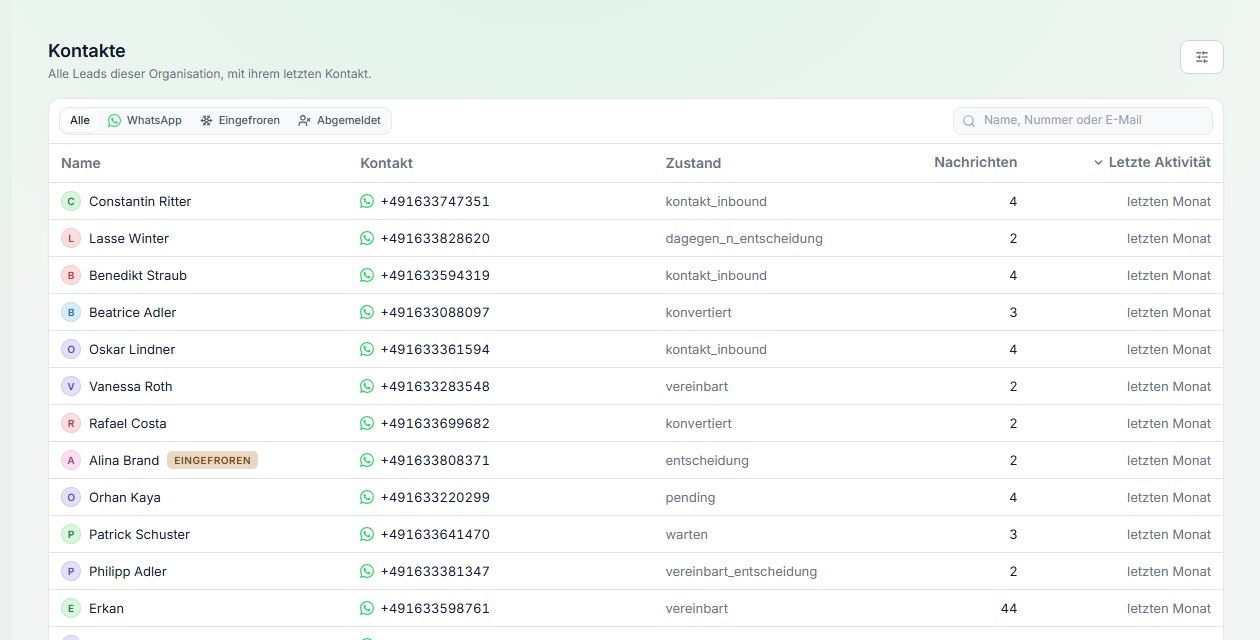
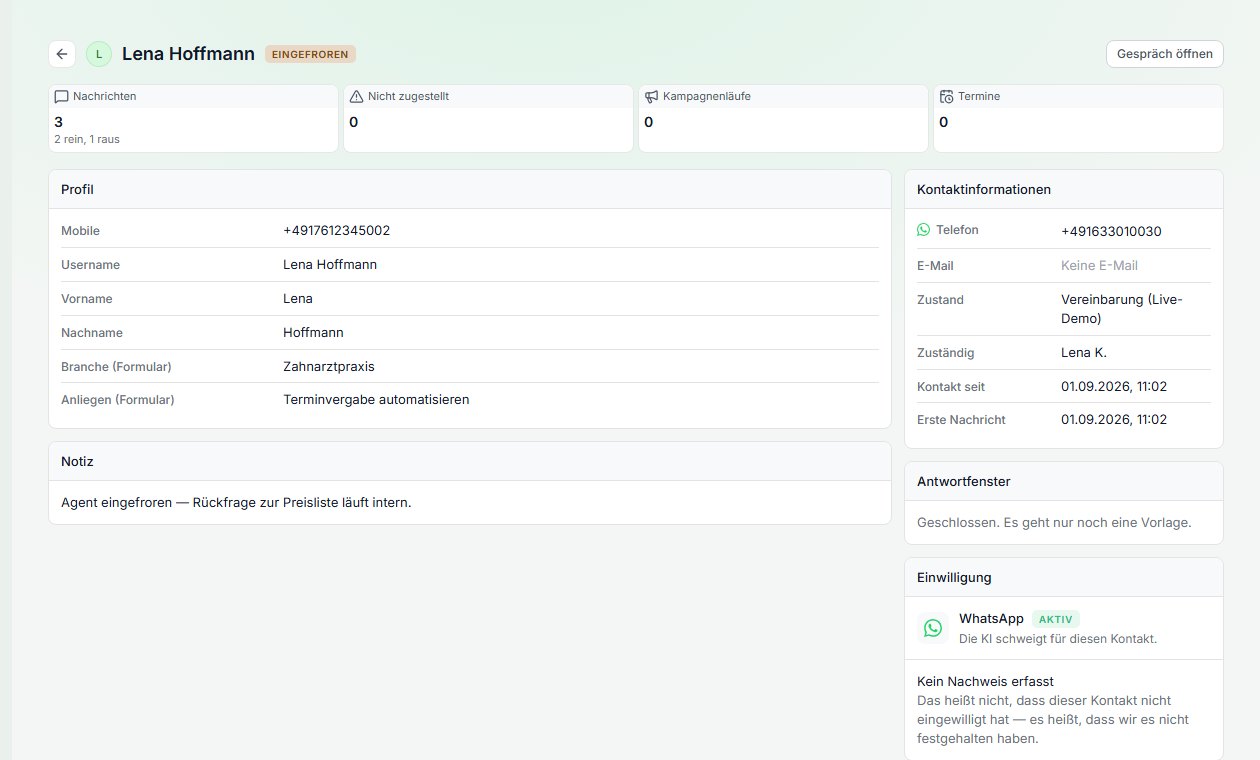
Under "Contacts" you find all leads of your workspace in one list. You search and filter them and open a page of its own for each contact with profile, note, consent and the most important numbers. From there one click takes you to the chat.
Where to find it
- In the navigation on the left: "Contacts".
- Above the table the tabs "All", "WhatsApp", "Frozen" and "Opted out", on the right the search field.
- At the top right the slider icon "Filter" for the state and the sorting.
- You create a new contact in the "Calendar" when you create an appointment, or via Gary.
How it works
Find contacts
- Open "Contacts".
- Type a name or number into the search field. You find numbers in any spelling, for example "0171 2000000" or "+49 171 2000000". The search field covers name, number, email and Instagram name. An email the AI only noted during the conversation appears only on the contact page and is not searched.
- Choose the type with the tabs, for example "Opted out".
- For states from your pipeline or a different sorting, open "Filter". Under "State", "Status" opens the list of your states, each with the number of contacts in it. You can tick several, and the list stays open while you do; "Any state" at the very top clears the selection again. "Reset" sits at the top of the filter and clears type, state and search.
- With the arrows at the bottom right you page on.
- Open a contact and go back, and everything is still set as before, including the page. While something filters the list, a line "Filtered …" with "Reset" sits above it.
View a contact
- Click a row. The contact page opens.
- "Open the conversation" takes you to the chat with this contact.
- The arrow at the top left takes you back to the list.
- Next to it you step to the next or previous contact, with the arrows at "3 of 70" or with the ↑ and ↓ keys. The order is that of the list you came from, with its search, filter and sorting.
Merge two leads of the same person
If the same person wrote to you on Instagram and on WhatsApp, you merge the two leads into one.
- On the contact page, top right,
…→ "Merge with another lead …" (for owners and admins). - Search for the second lead and pick it.
- You see which lead stays, what happens to the other one's entries, what happens in the CRM and whether anything is in the way. "Keep the other one instead" swaps the roles.
- Click "Merge" and confirm. A note with "Undo" appears at the bottom.
Conversations, appointments and the history move to the lead that stays; planned follow-ups and planned calls of the other one are cancelled. The earlier number still reaches it. An opt-out then applies to the lead that stays, and so does a freeze. If something is in the way, a yellow note says what to do first. If merging is not switched on yet, you only see the preview with a yellow note.
The other lead does not show up in the trash afterwards. You can undo the merge for 30 days: right after it with "Undo" in the note, and later on the contact page in the "Merged" card with "Undo" (for owners and admins). It also shows until when that works. What was added or changed since stays with the lead that stays; an opt-out is not simply lifted.
Create a contact
- Open "Calendar" and click on a free spot in the week view. The "New appointment" dialog opens.
- Click "Contact" and search by name or number.
- If they aren't there: choose "Add a new contact", enter the "Phone number" with the country code, the name if you know it, and press "Add a new contact" once more.
- The contact is created and selected right away. It stays, even if you then cancel the appointment.
On the phone it works via Gary: "Create a contact with the number +4915112345678." After your yes it's there. More about appointments in Calendar and appointments, more about Gary in Gary.
What the AI does
- The AI fills in a contact's profile during the conversation. What it has learned then appears under "Profile". For dropdown fields you see the answer in your language.
- It doesn't write to a newly created contact on its own. Only when they write to you can it reply.
- With a frozen contact it stays silent. The contact page shows this under "Consent".
Good to know
- "Calls" sits under "Consent", right below WhatsApp. "Active" means Mia may call this contact. The small line below says why: "recorded" on the contact, or "via form" when they came in through your form and you confirmed that form contacts agreed to be called. With "None" or "Revoked", Mia does not call.
- Tip for the number: Enter it with the country code and without the 0 after it, so +4915112345678 and not +49 (0)151 …. Otherwise the contact shows up twice as soon as they write to you themselves.
- Each number exists only once. If you create one that already exists, Nuntera picks the existing contact.
- Searching for a number: without spaces and without the leading 0, for example 15112345.
- The contact page only displays. You change profile, note, assignee and "Frozen" in the Chat, or for several contacts at once in the list (see below).
- "No record taken" doesn't mean the contact didn't consent. It only means nothing was recorded.
- "Opted out by mistake?" appears under "Consent" when the team itself opted the contact out (for example by freezing) at most 30 days ago. Owners and admins take back the opt-out there with a reason; the reason is stored with their name in the record.
- New contacts appear when you reopen the page or change the search or filter.
- Roles: Everyone on the team can view, everyone except viewers can create contacts.
Frequently asked questions
Can I delete one or several contacts?
Yes, as an owner or admin. One: on the board, right-click the card (or "…"), then "Delete" at the very bottom. Several: under Contacts tick the boxes at the start of the rows (the box in the header selects the whole page), then "Delete" in the bar above. Right afterwards, "Undo" in the notice brings everything back. Deleted contacts stay in the "Deleted" tab for 30 days and can be brought back there with "Restore", several at once too. After that they no longer show in your workspace; Nuntera keeps them, though, and if the contact writes again, it is back. If it had opted out, it stays opted out. A complete deletion under GDPR is requested by email to hello@nuntera.com with the phone number. Even after that, an opt-out stays in force: if the number comes back later, for example through a form or an import, the contact is still opted out. The number itself is not stored for this.
I froze a contact by mistake. How do I take back the opt-out?
As an owner or admin, on the contact page under "Consent", click "Opted out by mistake?", enter the reason and "Take back opt-out". Under "Afterwards" you choose whether AI and sending are free again; otherwise the contact stays frozen and nothing goes out on its own. This works for 30 days and only as long as nothing newer is in the record. It is the correction of an operating error, not a new consent from the contact. An opt-out the contact wrote themselves can never be taken back.
Can I assign, move or freeze several contacts at once?
Yes. Tick the contacts at the start of the rows. The bar above offers "Assigned" (a person from your team or "Nobody"), "Move" (a state of your pipeline, grouped by stage) and "AI" with "Freeze" and "Unfreeze". Freezing asks first. A notice then tells you what changed and what did not. A contact who opted out can only be unfrozen one by one in the chat. The AI follows your changes in its next conversation. Everyone on the team except viewers can do this.
Can I import or export contacts?
Yes, as an owner or admin: under "Actions" at the top right (Import and export leads).
What do "Frozen" and "Opted out" mean?
With "Frozen", the AI stays silent, nothing automatic goes to the contact anymore, and in the chat the message field is locked. "Opted out" means the contact has objected to receiving messages. How you set both is in the article on the Chat.
What happens if the contact later writes to me themselves?
If you entered the number correctly, their message lands with the same contact, and the name you entered stays.