

Help CenterGetting started
Invoices
What it's about
With invoices you send your lead a link to an invoice in the WhatsApp chat. They see the title, line items, net amount, VAT and the total, and pay on Stripe’s secure invoice page. In the chat you see whether the invoice is open, viewed, paid or overdue. Every invoice is built from a template you create once.
Where to find it
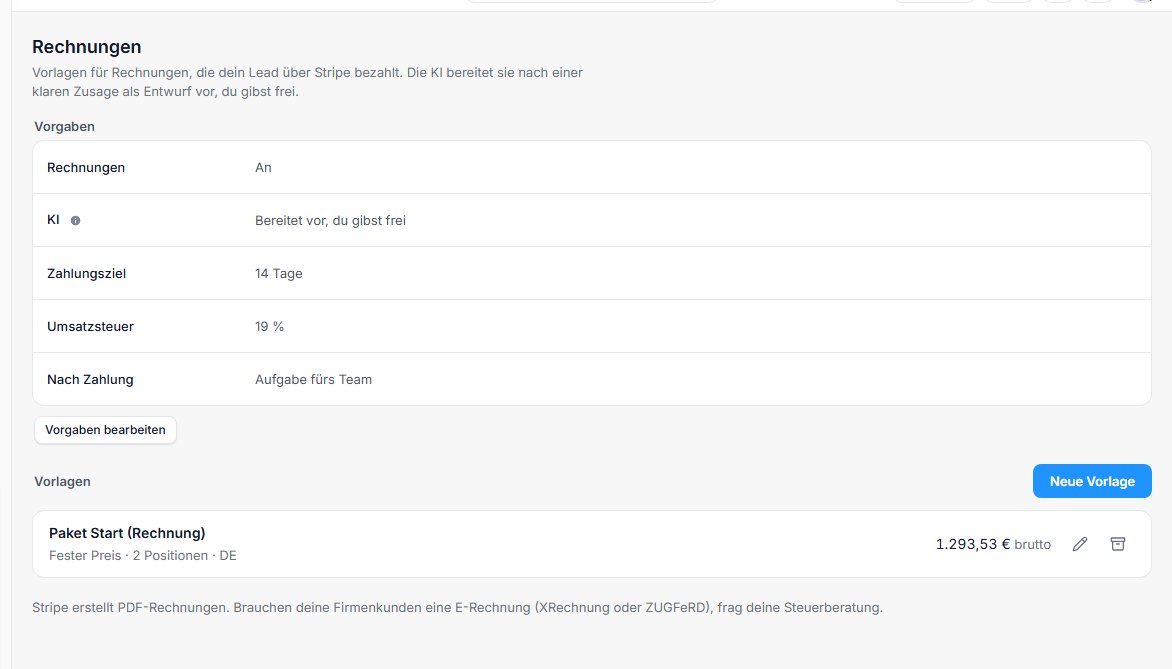
On the left tap “Settings”, then under “Pipeline” tap “Invoices”. Your defaults and templates are there. You send an invoice in the chat via “…” (More actions) next to the message field and then “Invoice”.
How it works
Switch on invoices
- Connect a Stripe account that can accept payments: under “Settings”, “Discover integrations”, “Stripe”. If it is missing, the “Invoices” page shows a yellow notice with the button “Connect Stripe”.
- Tap “Switch on invoices”.
- Check the payment term and VAT and tap “Save”.
Set the defaults
Tap “Edit defaults”. There you set:
- Payment term: how many days your lead has to pay (1 to 90). After that the invoice shows as “Overdue”.
- VAT: 19%, 7%, “None” (for example for small businesses exempt from VAT) or another rate.
- After payment: With “Task for the team” a task appears on the lead after payment so someone follows up.
- Under “More options”: a footer for every invoice and whether Stripe also sends the invoice by email when your lead has an email address.
Create a template
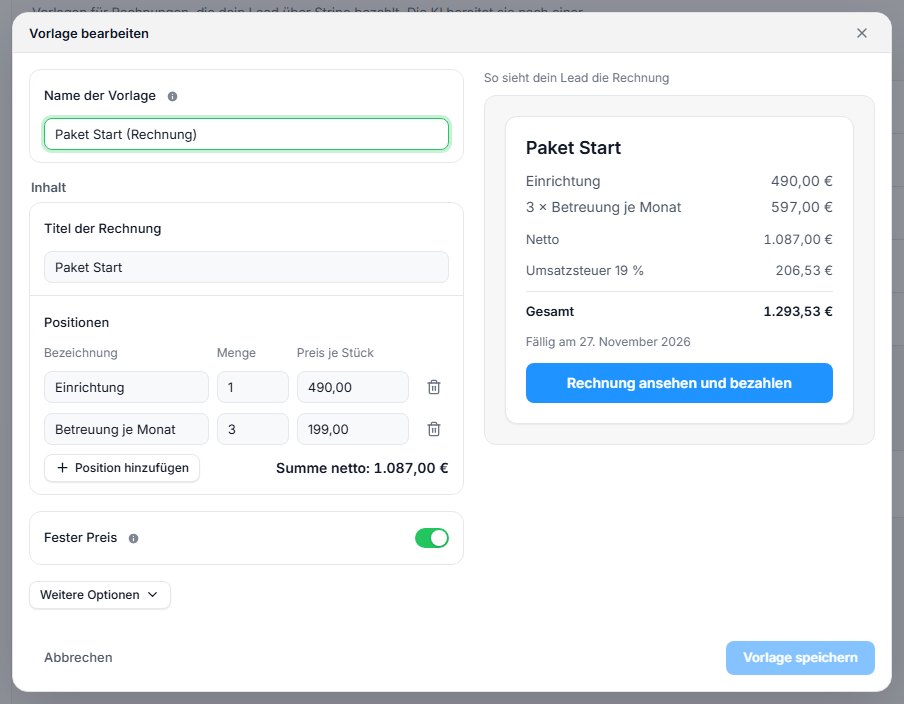
- Tap “New template”.
- Give it a name, for example “Starter package”. Only you and the AI see the name.
- Enter the invoice title and the line items: description, quantity and price per unit (net).
- On the right you immediately see how your lead will see the invoice, with VAT and due date. Tap “Save template”.
Send an invoice in the chat
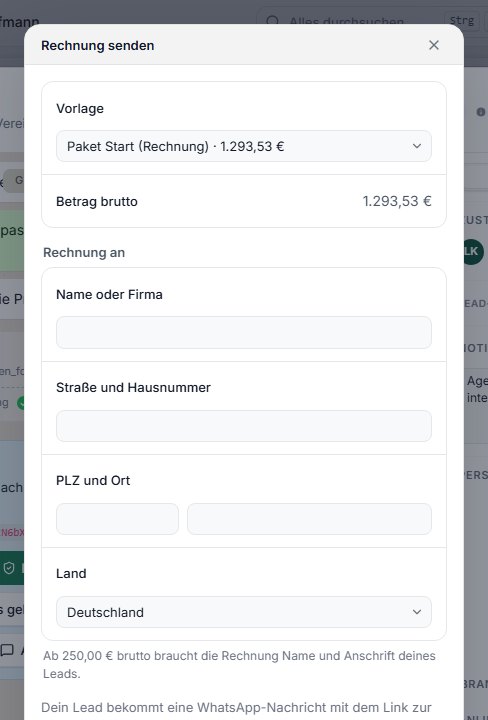
- In the lead’s chat tap “…” and then “Invoice”.
- Choose the template. Below it you see the amount incl. tax.
- Above 250 € incl. tax the invoice needs your lead’s name and address. The fields then open by themselves. If you entered them before, the address is shown with “Change”.
- Stripe needs your lead’s email address for every invoice. If Nuntera does not know it yet, the field “Lead’s email” appears. Once entered, Nuntera remembers it for the next invoice.
- Tap “Send invoice”. Your lead gets a WhatsApp message with the link.
Below you see all invoices to this lead with their status. You open an AI draft with “Review and send”, and you cancel an open invoice with “Cancel invoice”.
If there is already a draft for the lead, “Send invoice” is locked so your lead does not get a second invoice. A yellow note at the top of the window takes you to “Review and send”. If you really want a new invoice, cancel the draft first.
What the AI does
The AI never sends an invoice itself. When your lead clearly says yes, it creates a draft from one of your fixed-price templates, and you approve it in the chat. If the invoice needs a name and address, the AI first asks for them in one message and only takes what your lead actually wrote in the chat. You see the address when approving and can correct it. The AI prepares at most one draft per lead at a time.
Invoice on instruction
If you write, for example, “Create an invoice for 2 × €49 consulting” in “AI trigger”, the AI creates a draft from it. Every amount has to appear exactly like that in your instruction; the AI never makes one up. It is only sent once you have reviewed the draft with its line items; the AI took the texts from your instruction, so take a quick look. You can switch it on under Settings → Invoices → Defaults → Invoice on instruction once Nuntera has released the feature for you.
Good to know
- Invoices are only sent while the WhatsApp 24-hour window is open and the lead has not unsubscribed.
- An invoice is at least 0.50 in its currency (€0.50, CHF 0.50 or $0.50).
- If Nuntera says it no longer has access to your Stripe account, reconnect Stripe under “Settings”, “Connected integrations”.
- Cancelling also makes the invoice invalid in Stripe. Your lead gets no message about it. A paid invoice cannot be cancelled; you can refund it in Stripe. You then see the refund on the invoice in the chat.
- Stripe creates PDF invoices. If your business customers need an e-invoice (XRechnung or ZUGFeRD), ask your tax advisor.
- Owners and admins change defaults and templates. Only owners and admins can cancel invoices, too.
- Which details an invoice needs depends on your business. If in doubt, ask your tax advisor.
Frequently asked questions
How does my lead pay?
On the invoice page they tap “View and pay invoice” and pay with Stripe. There they can also download the invoice as a PDF.
How do I know it was paid?
The invoice then shows as “Paid” in the chat.
Does the lead see that the AI prepared the invoice?
No. The invoice only goes out once you approve it, and it arrives like any other message from your chat.