

Help CenterSet up your AI
Knowledge, rules and gaps
Last checked against the product: October 3, 2026
What it's about
In the library you give your AI knowledge: texts, PDFs, recordings, images and websites. With rules you set what should happen for certain questions. Under "Gaps" you see which questions the AI could not answer with your knowledge yet.
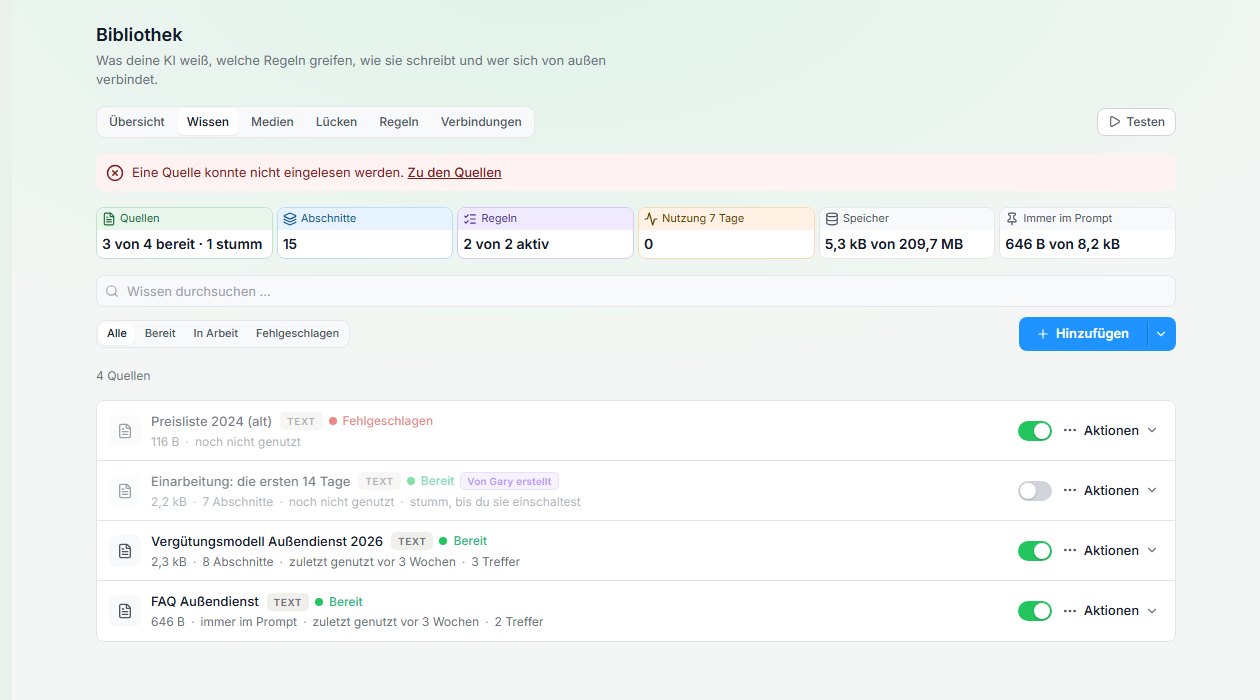
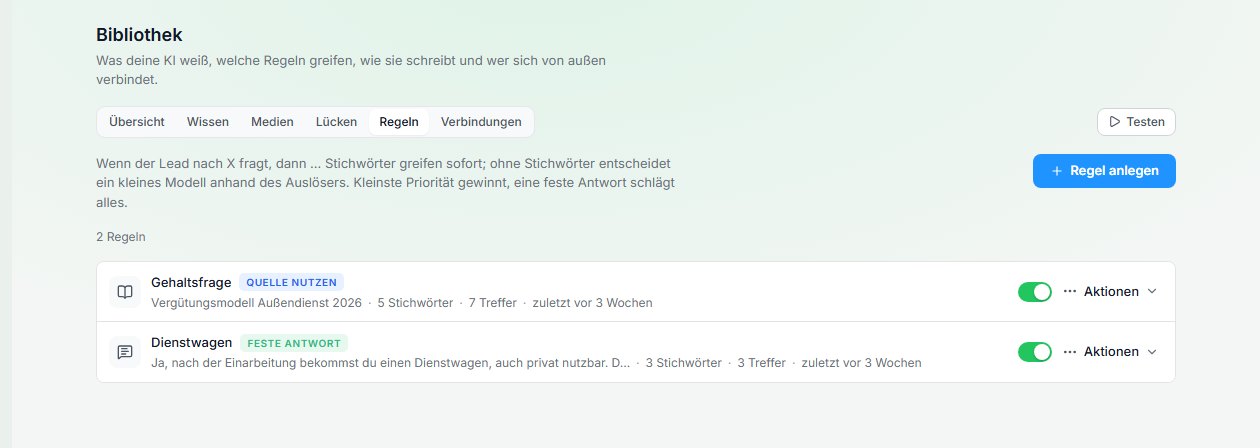
Where to find it
- In the navigation, "Library", then the tabs "Knowledge", "Rules" and "Gaps".
- You add new knowledge in the "Knowledge" tab with "Add" and the menu next to it.
- You create a new rule in the "Rules" tab with "Create rule".
- Below your rules and your knowledge, Nuntera suggests what is missing: questions from your leads the AI could not answer yet, otherwise examples to adopt.
How it works
Add knowledge
- "Knowledge" tab, "Add": for a text, enter a "Title" and "Content" and click "Create snippet".
- For a file, choose "PDF", "Audio recording" or "Image" in the menu next to it. You can also simply drag the file onto the page.
- For a website, choose "Website", enter the "Address", choose the "Scope" and click "Read website".
- The source appears in the list right away and is read in the background. As soon as it says "Ready", the AI can use it.
Create a rule
- "Rules" tab, "Create rule".
- Enter a "Name" and, under "Trigger", describe in your own words which question the rule should apply to. With "Keywords" it only applies if one of them is in the message.
- Choose the "Action" and fill in its field, then "Create rule".
Close a gap
- "Gaps" tab, "Open (n)".
- "Add knowledge" opens a new text with the question as its title. Write the answer into it and click "Create snippet".
- The question then shows under "Done".
If a question needs no knowledge (for example because it has nothing to do with your business), choose "No knowledge needed". It then shows under "Done" and does not come back under "Open". Under "AI answer" you see for every question what the AI replied.
The same works right below your rules with "Create as rule" and below your knowledge with "Add knowledge".
What the AI does
- It answers your leads' questions from your knowledge and is instructed not to make anything up. If something is missing, it should say so honestly and bring in your team.
- From PDFs and websites it reads the text, recordings it transcribes, images it describes. You see what it made of them when you open the source.
- It applies rules like this:
- "Use source": it gets this source with priority for the answer, and for a long source the beginning. So put the most important part first.
- "Fixed reply": your prepared text for this question. Usually the AI writes the answer and uses your text as a guide. It only goes out word for word if your knowledge adds nothing to the message.
- "Ask the team": your team gets a card with your message, and the AI keeps writing to the lead.
- "Set state": the lead moves into the chosen state, as long as the move there is allowed (Pipeline and fields).
- "Prompt": an instruction to the AI for this answer. It never goes to the lead.
- Factual questions it lacked the knowledge for are collected under "Gaps", with a counter for how often they came up. What is not a knowledge gap (test messages, scheduling, questions about the AI) does not land there. If something like that is under "Sorted out", "Restore" brings it back; nothing is deleted.
Good to know
- Every source and every rule has a switch. The AI only uses what is switched on, and sources only once they say "Ready".
- Some websites build their content in the browser. Nuntera reads those too. If that fails once, the source says so; then add the key information as text.
- A file can be at most 20 MB, a typed text at most 20,000 characters. Long websites and files are read up to a limit and the rest is left out; add important subpages on their own.
- "Always in prompt" is meant for a few short texts, such as opening hours or the company name. If there are too many, not all of them get used. Keep them short, or switch the option off for longer texts. If such a text gets too long while you edit it, Nuntera saves nothing and tells you what to do: shorten it or switch "Always in prompt" off.
- For PDFs, recordings, images and websites you only change the title and description. You edit the text itself in text snippets.
- You re-read a website with subpages by adding it again and choosing the "Scope" again.
- The AI does not send an image from your knowledge to leads. Images for sending belong in the "Media" tab.
- Owners and admins can make changes. Agents and viewers see everything. Deleting asks first and can't be undone.
Frequently asked questions
My source says "Failed". What now?
Open it. There you see the reason and "Re-ingest". If it is too large, split the file.
The AI doesn't use my new source. Why?
Check that it says "Ready" and that its switch is on. With "Test" you can ask the AI about it directly.
Does "Add knowledge" mark the gap as done?
Yes, as soon as you have created the snippet. Without new knowledge you close a question with "No knowledge needed".
When uploading, it says "This workspace has reached its limit." What does that mean?
Usually the file is larger than 20 MB. Make it smaller or split it.